Wizard Client WebUI Usage
The Wizard Client WebUI provides a graphical interface for interacting with the Cluster Wizard environment. Through this interface, users can access and manage their assigned virtual machines, monitor system information, and perform common operations such as powering VMs on or off, accessing consoles, and managing snapshots. Administrators have additional capabilities for managing hosts, networks, templates, users, and certificate requests. This guide explains the layout of the WebUI and the available features for both standard users and administrators.
1. Login
The Wizard Client WebUI login page provides access to the Cluster Wizard system using either username/password or certificate-based authentication. The annotated image below highlights the main elements available to users when accessing the login interface.
1.1 Login Page Overview
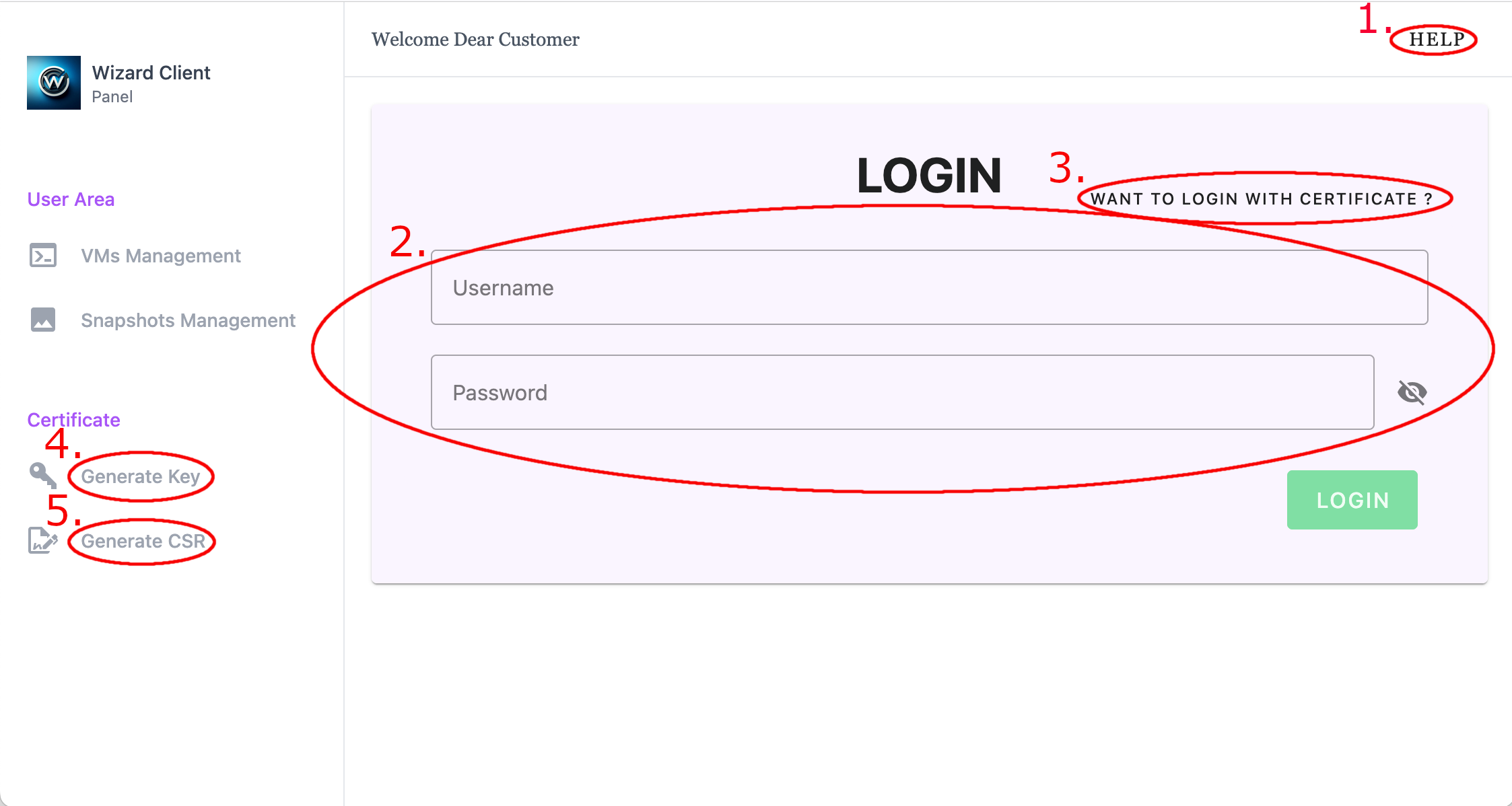
- Help - Help Menu with links to About and Contact Us pages
- Username/Password entry boxes for login
- Switch to Certificate Login
- Generate Key Pair
- Generate Certificate Signing Request (CSR)
- Help - Help Menu with links to About and Contact Us pages
- Username/Password entry boxes for login
- Switch to Certificate Login
- Generate Key Pair
- Generate Certificate Signing Request (CSR)
1.1.1 Switch to Certificate Login
Opens the interface for logging in using a client certificate and private key instead of username/password authentication. The certificate login interface allows users to authenticate using a client certificate and private key. The annotated image below highlights the elements used for certificate-based authentication.
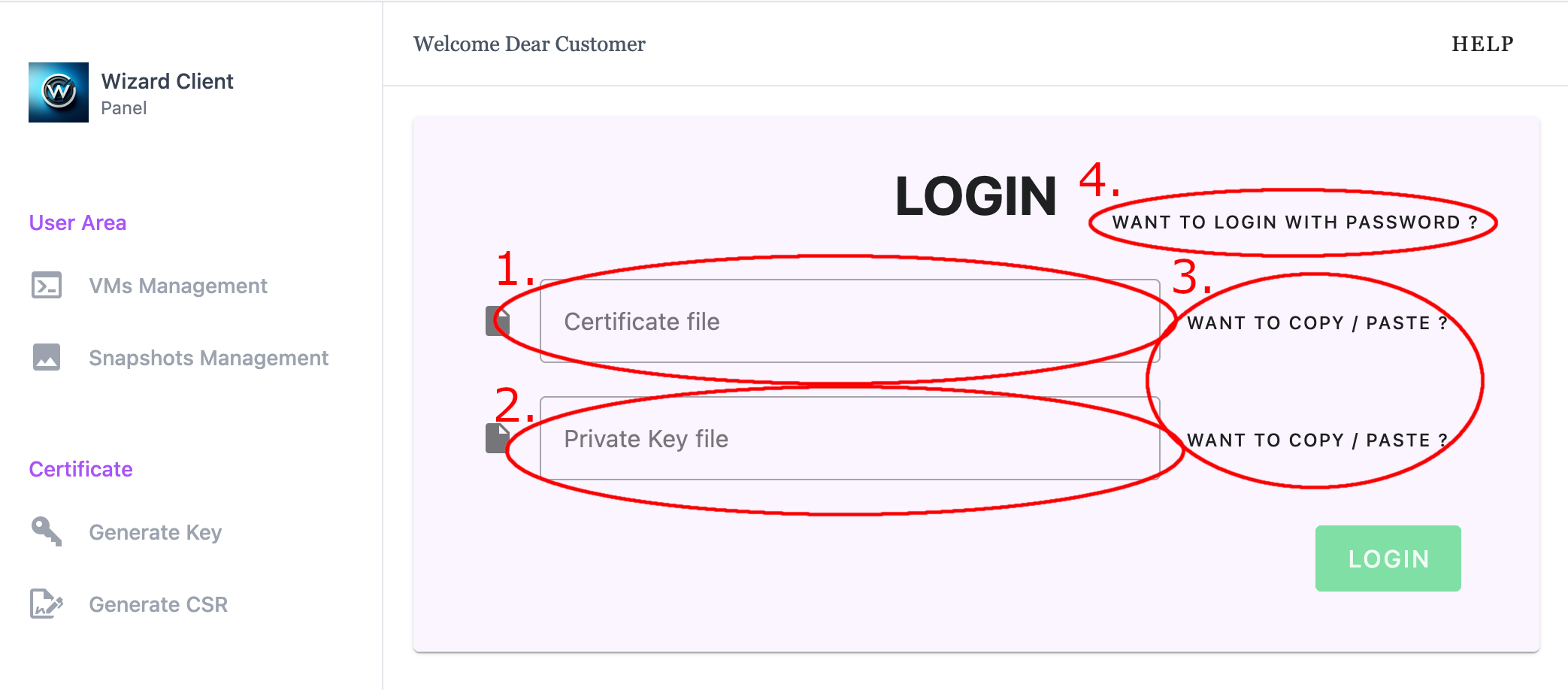
- Specify Certificate File
- Specify Private Key File
- Toggle Specify File to Copy / Paste Text
- Login with Username/Password
- Specify Certificate File
- Specify Private Key File
- Toggle Specify File to Copy / Paste Text
- Login with Username/Password
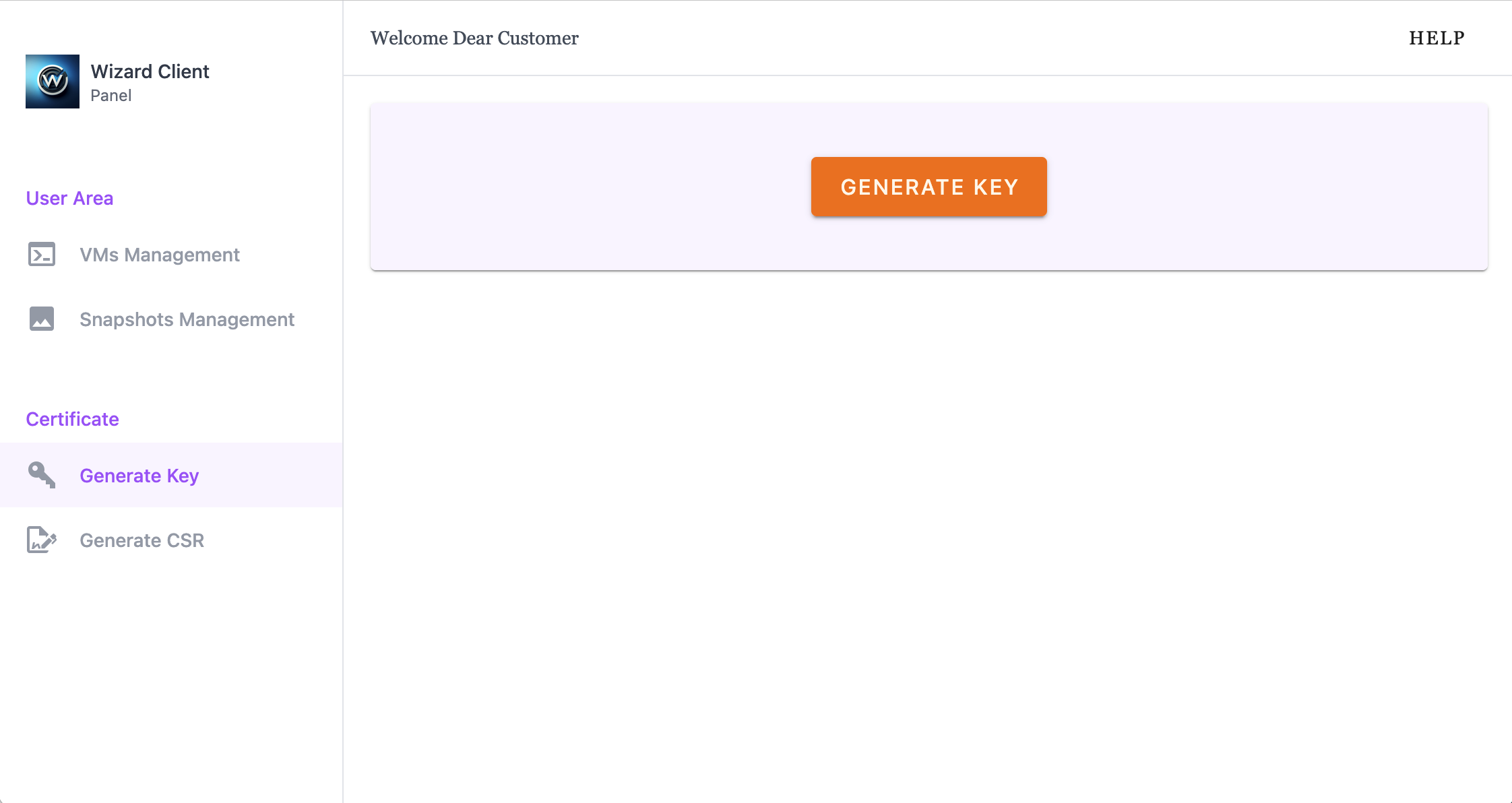
1.1.2 Generate Key Pair
Opens an interface where the user can generate a public/private key pair for certificate-based authentication.
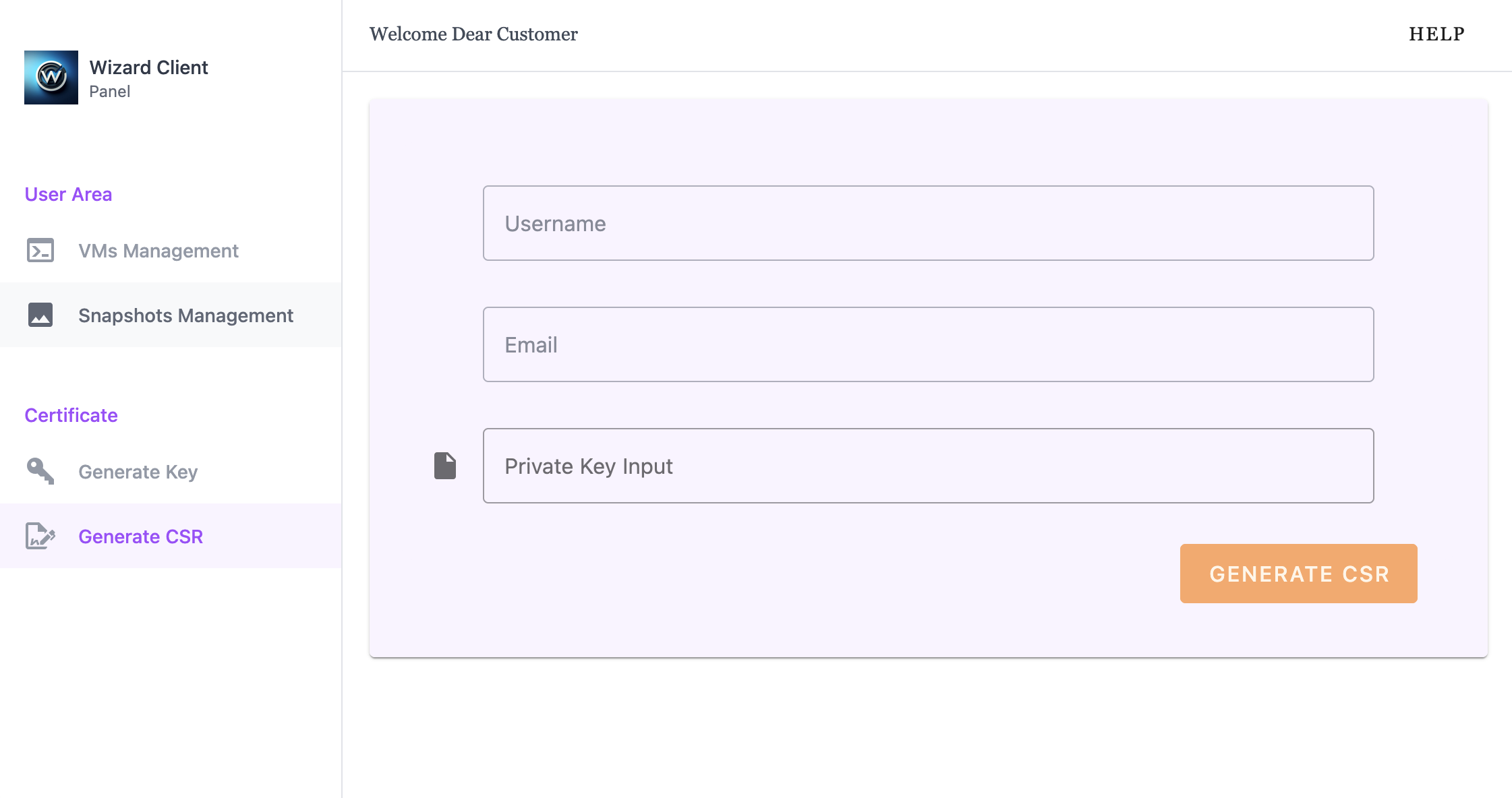
1.1.3 Generate Certificate Signing Request (CSR)
Opens an interface where the user can generate a Certificate Signing Request (CSR). After the form is completed, the CSR is automatically sent to a Cluster Wizard administrator for approval.
2. User Interface
The User Interface provides users with access to virtual machines assigned to their account. From this interface, users can manage VM power state, access the VM console, view system information, and perform snapshot operations.
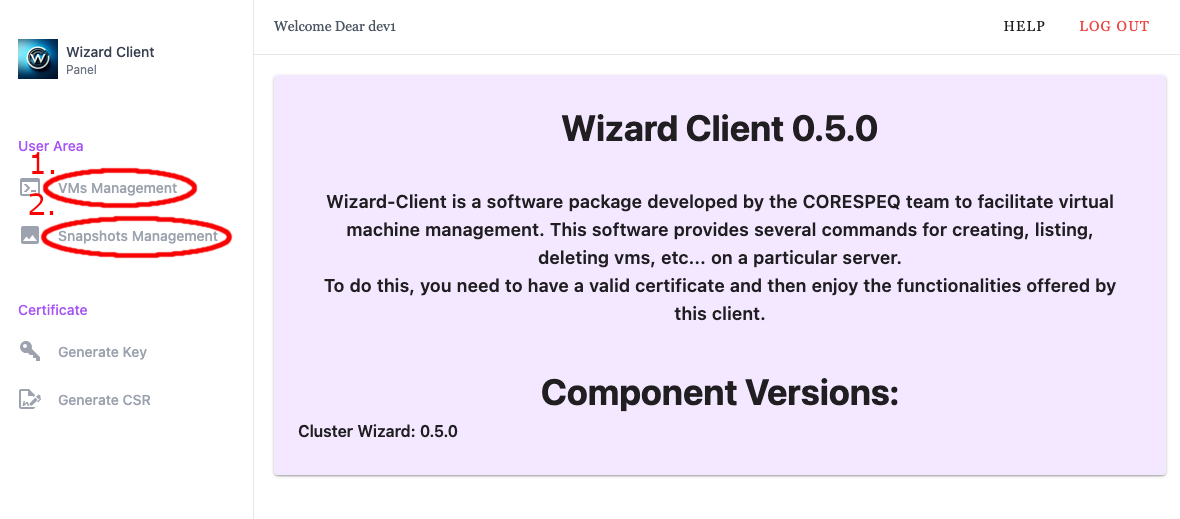
2.1 User VMs Management
The Virtual Machine Management view displays all virtual machines assigned to the user. From this interface, users can select a VM and perform management actions such as power operations, console access, networking inspection, disk inspection, and snapshot creation.
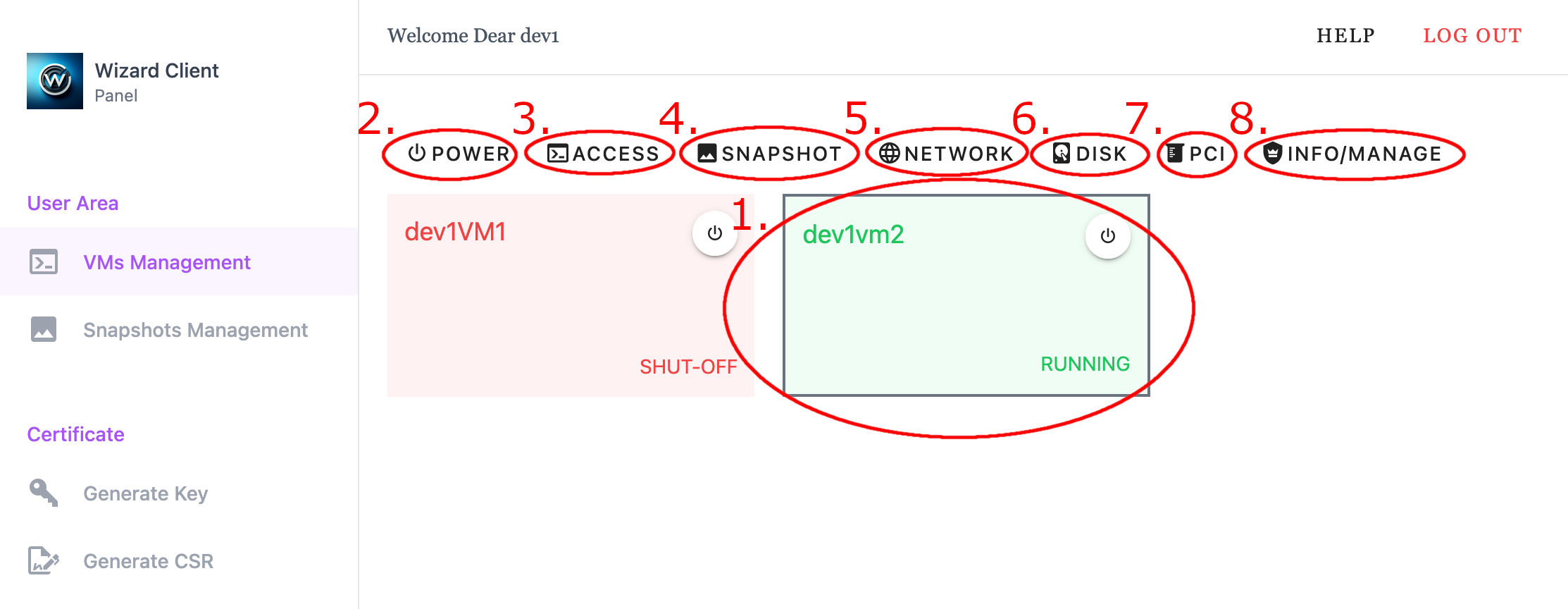
- Selected VM - Displays the VM currently selected for management actions
- Power Menu
- Access Menu
- Snapshots Menu
- Network Menu
- Disk Menu
- PCI Menu
- Info/Manage Menu
- Selected VM - Displays the VM currently selected for management actions
- Power Menu
- Access Menu
- Snapshots Menu
- Network Menu
- Disk Menu
- PCI Menu
- Info/Manage Menu
2.1.1 Power Menu
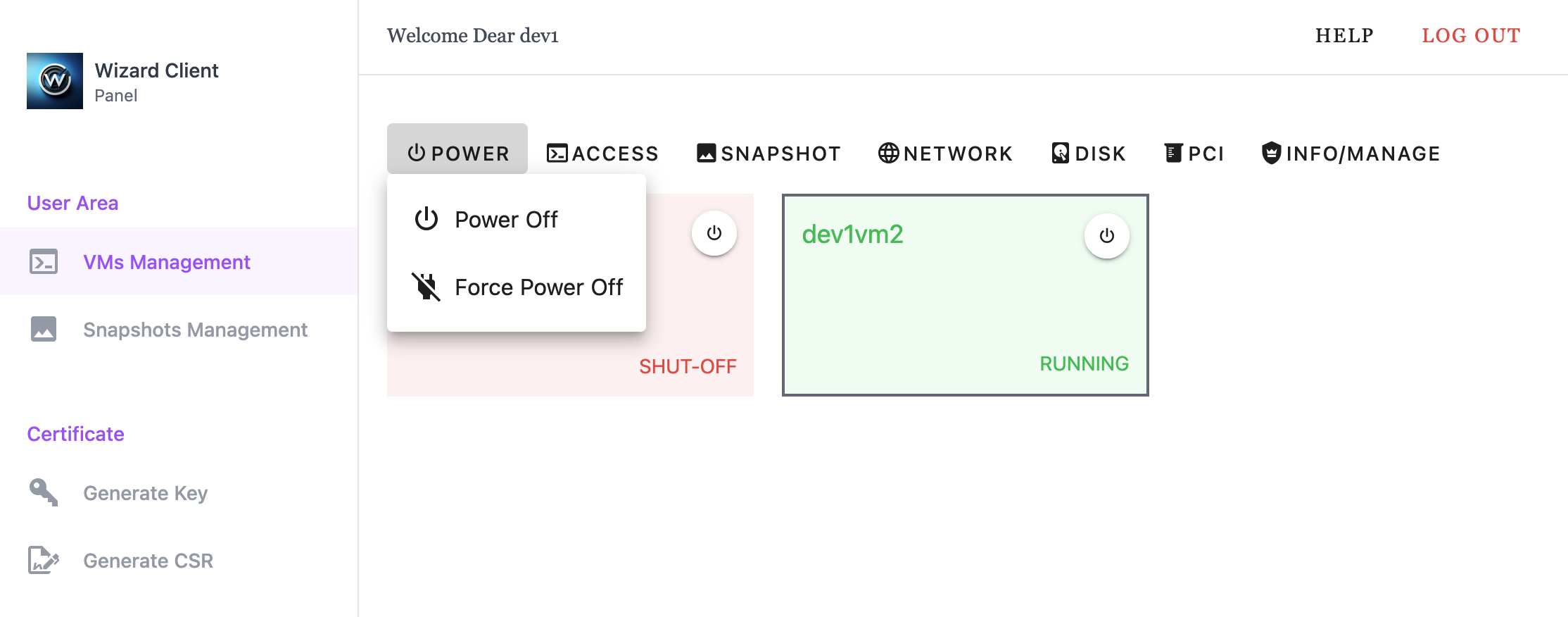
- Power Off - gracefully powers off the selected VM
- Force Power Off - immediately power off the selected VM without a graceful shutdown
Back to 2.1 User VMs Management
2.1.2 Access Menu
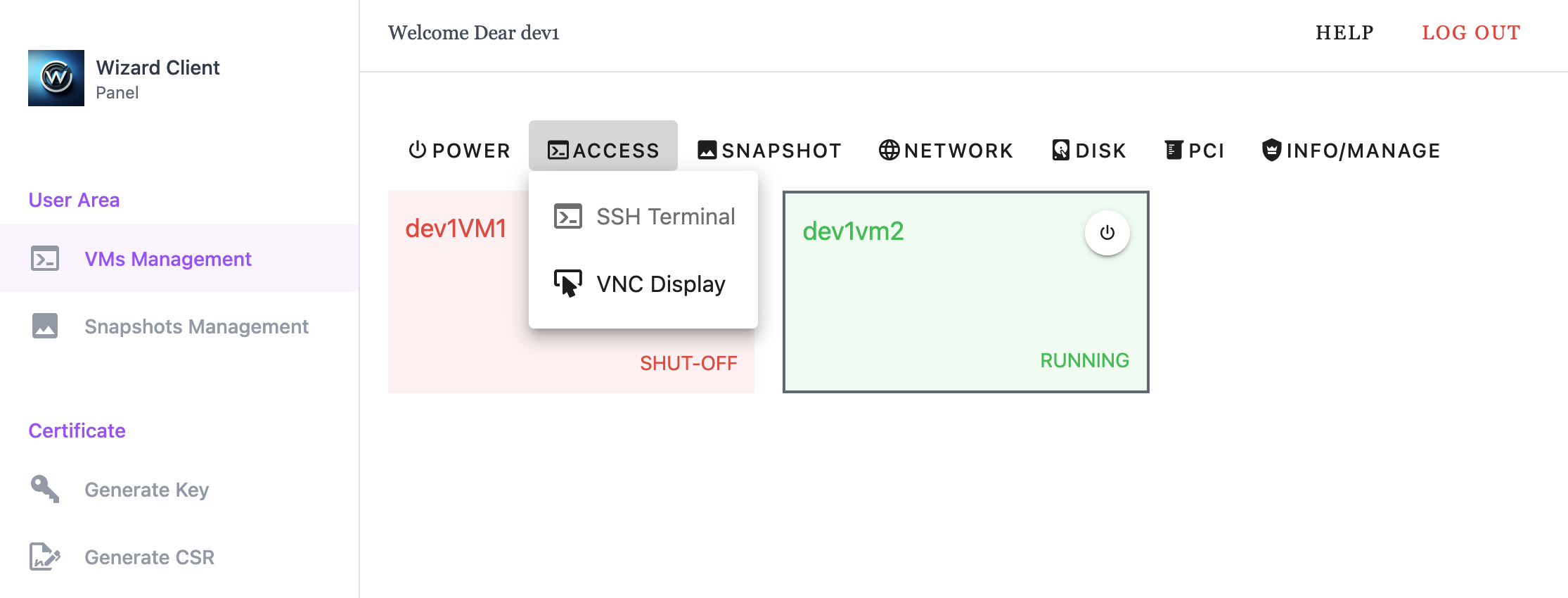
- SSH Terminal - provide WebUI based SSH access to selected VM
- VNC Display - provide WebUI based VNC access to selected VM
Back to 2.1 User VMs Management
2.1.3 Snapshots Menu
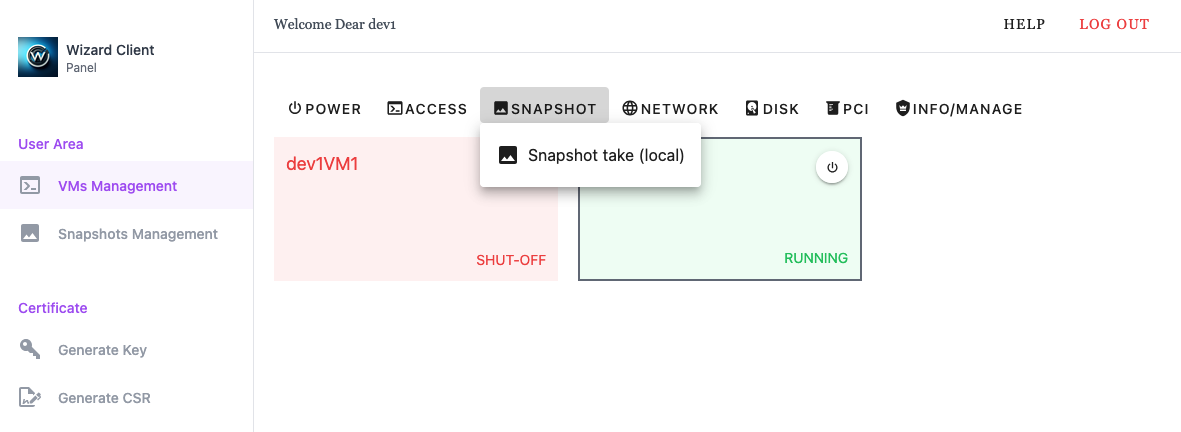
- Snapshot take (local/RBD) - creates a local or Ceph RBD snapshot of the selected VM
Back to 2.1 User VMs Management
2.1.4 Network Menu
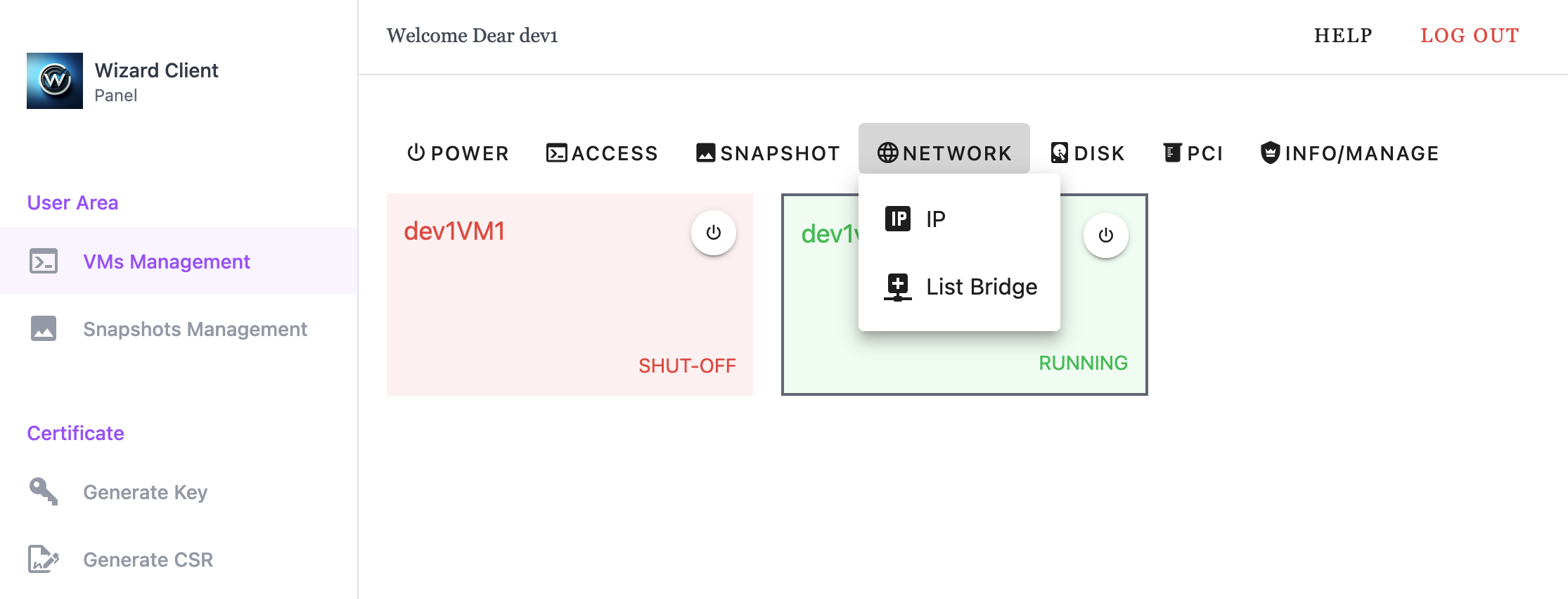
- IP - displays the IP address of the selected VM
- List Bridge - displays the network bridges attached to the selected VM
Back to 2.1 User VMs Management
2.1.5 Disk Menu
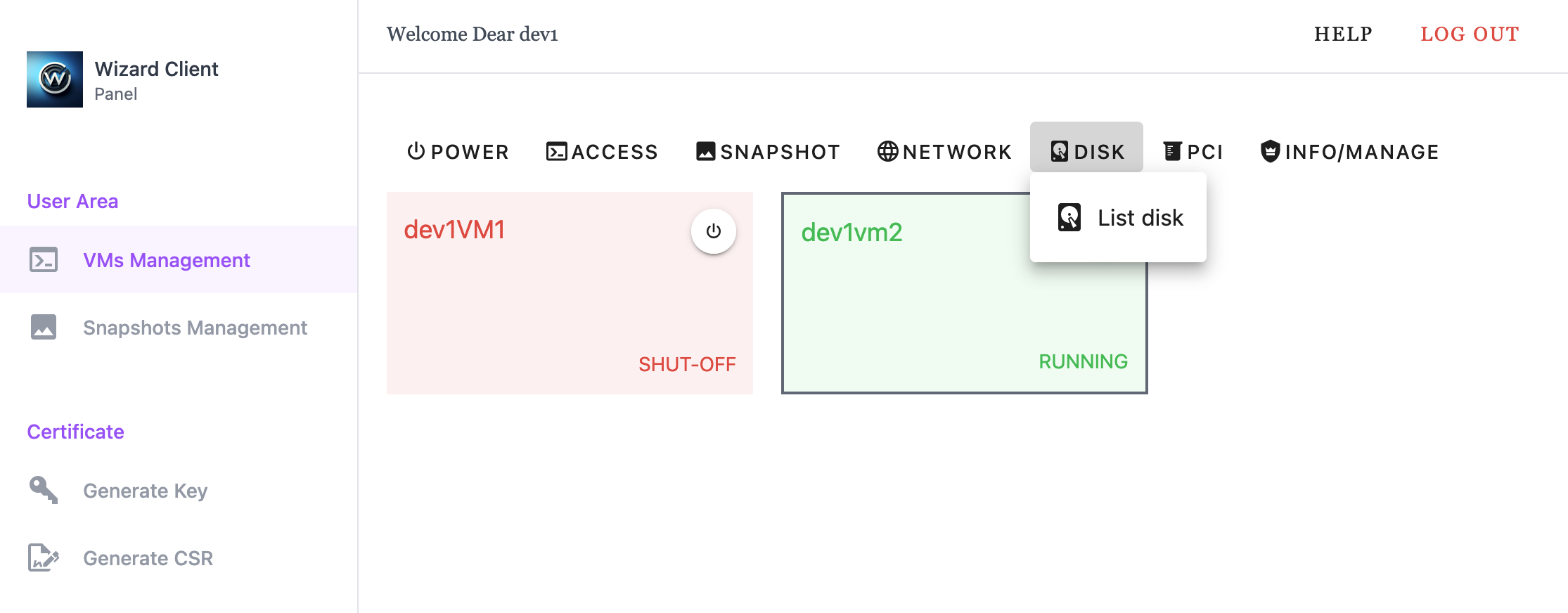
- List Disk - displays the disks configured for the selected VM
Back to 2.1 User VMs Management
2.1.6 PCI Menu
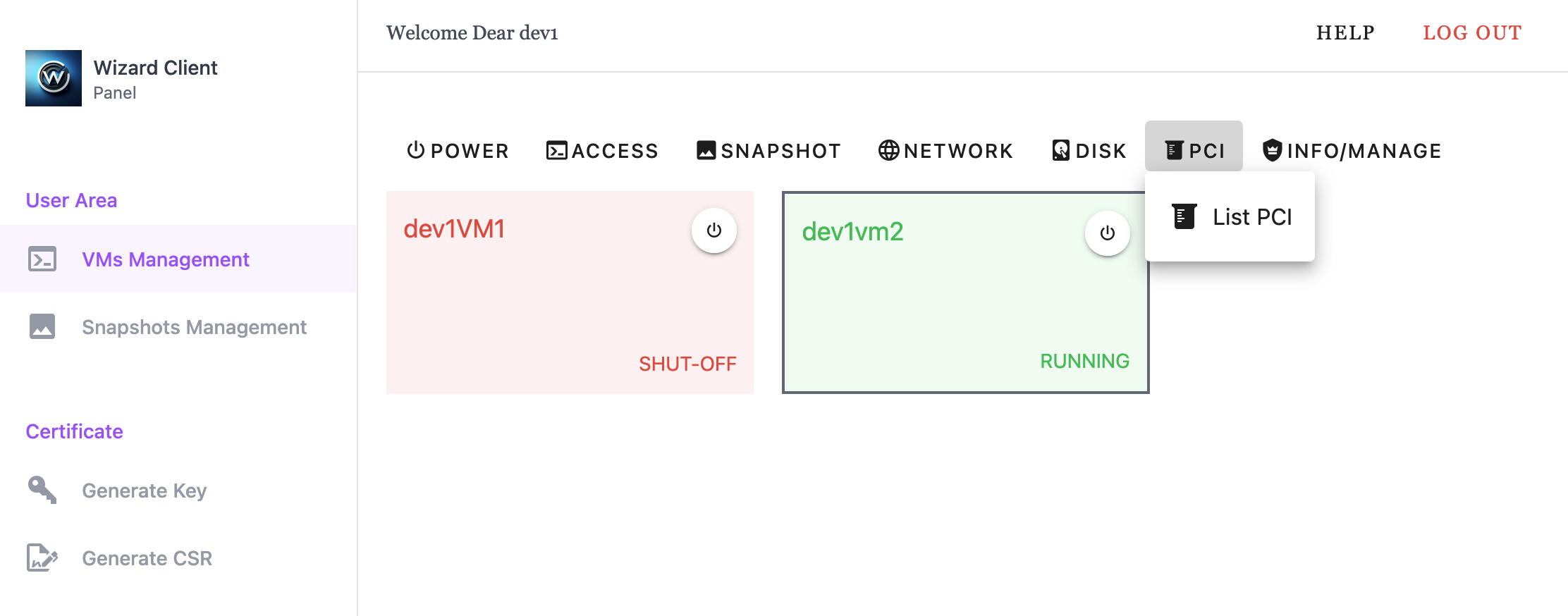
- List PCI - displays host PCI devices attached to the selected VM
Back to 2.1 User VMs Management
2.1.7 Info/Manage Menu
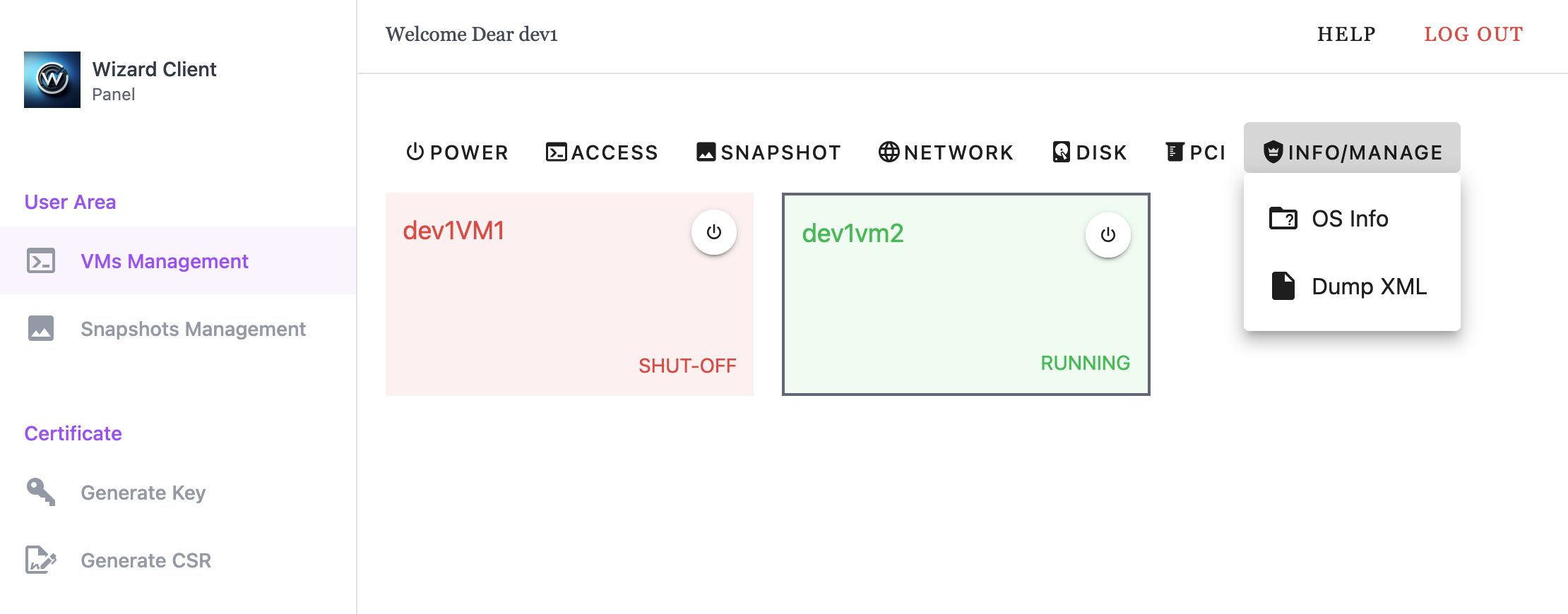
- OS Info - displays operating system information for the selected VM
- Dump XML - exports the selected VM’s domain XML configuration and downloads it as a file.
Back to 2.1 User VMs Management
2.2 User Snapshots Management
The Snapshot Management interface allows users to view and manage snapshots from their assigned virtual machines. From this interface, users can inspect snapshot information, download configuration data, delete snapshots, or restore a VM to a previous state.
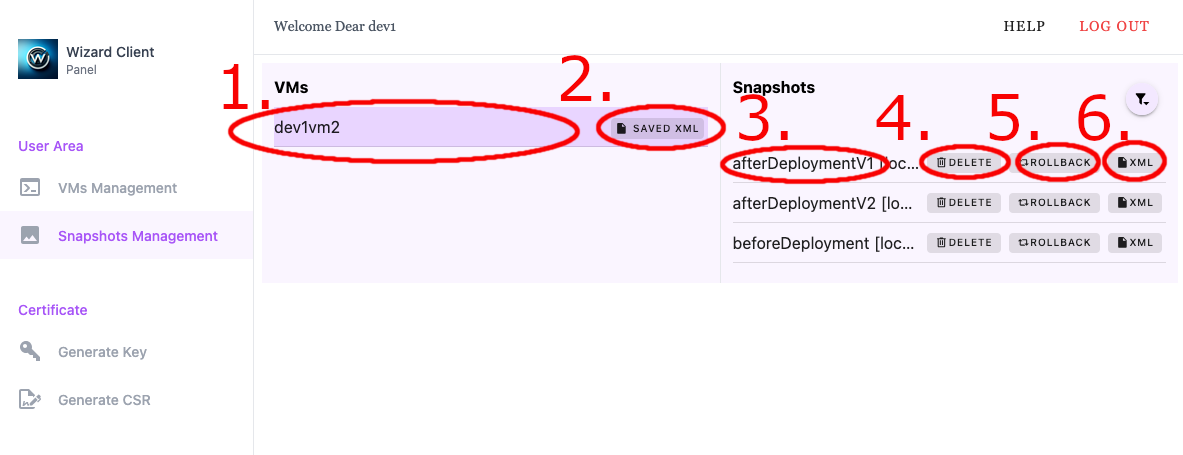
- Selected VM - Selects the VM whose snapshots are displayed in this view
- Display previously saved VM XML files for download
- Snapshot Name
- Delete Snapshot
- Rollback VM to selected snapshot
- Download the snapshot domain XML
- Selected VM - Selects the VM whose snapshots are displayed in this view
- Display previously saved VM XML files for download
- Snapshot Name
- Delete Snapshot
- Rollback VM to selected snapshot
- Download the snapshot domain XML
3. Admin Interface
The Admin Interface provides administrators with centralized tools for managing the Cluster Wizard environment. From this interface, administrators can monitor cluster resources, manage hosts, virtual machines, networks, templates, and user accounts. It also provides administrative controls for reviewing certificate requests and maintaining cluster configuration.
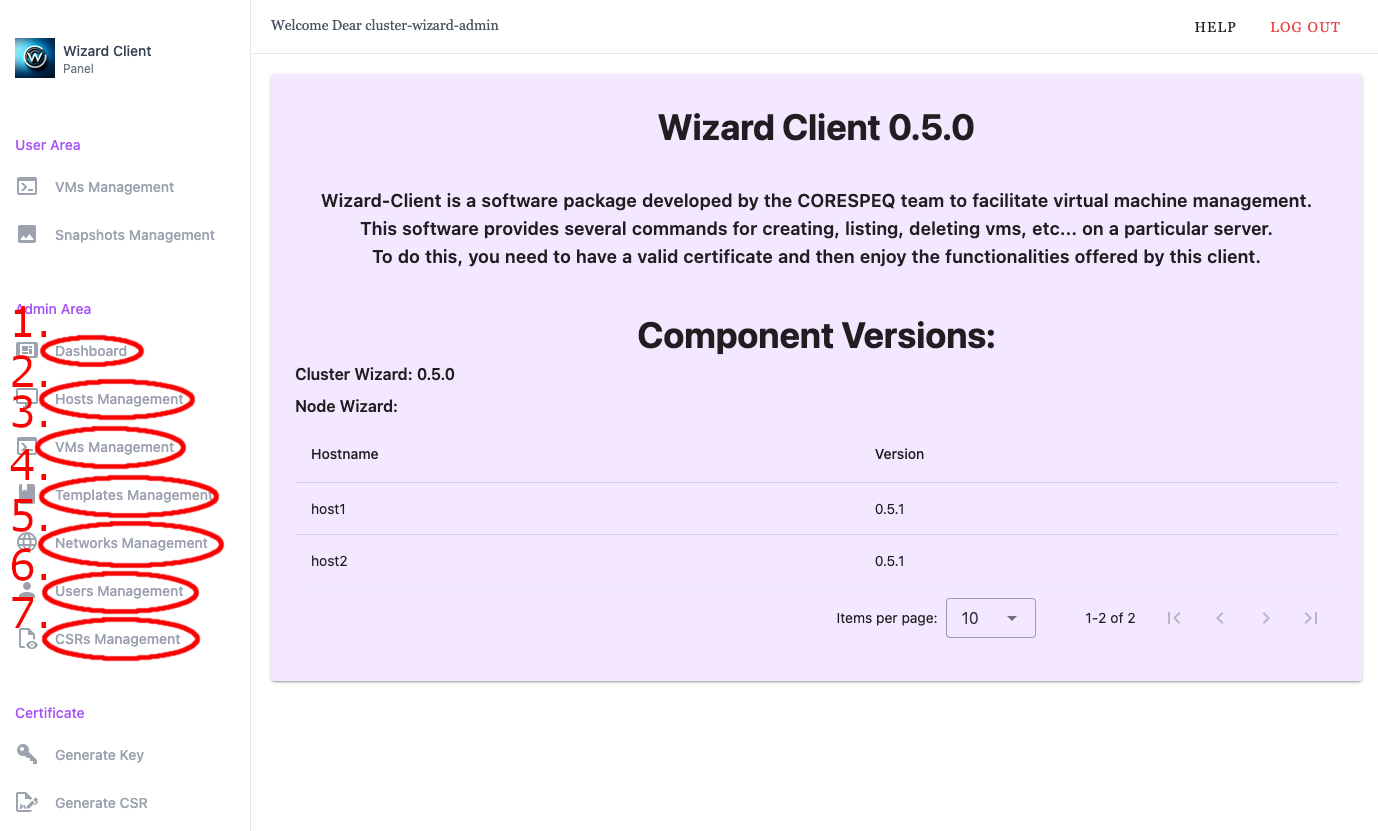
3.1 Dashboard
The Dashboard provides an overview of the current state of the Cluster Wizard environment. It summarizes key system information including license status, hosts, virtual machines, templates, users, and pending certificate requests.
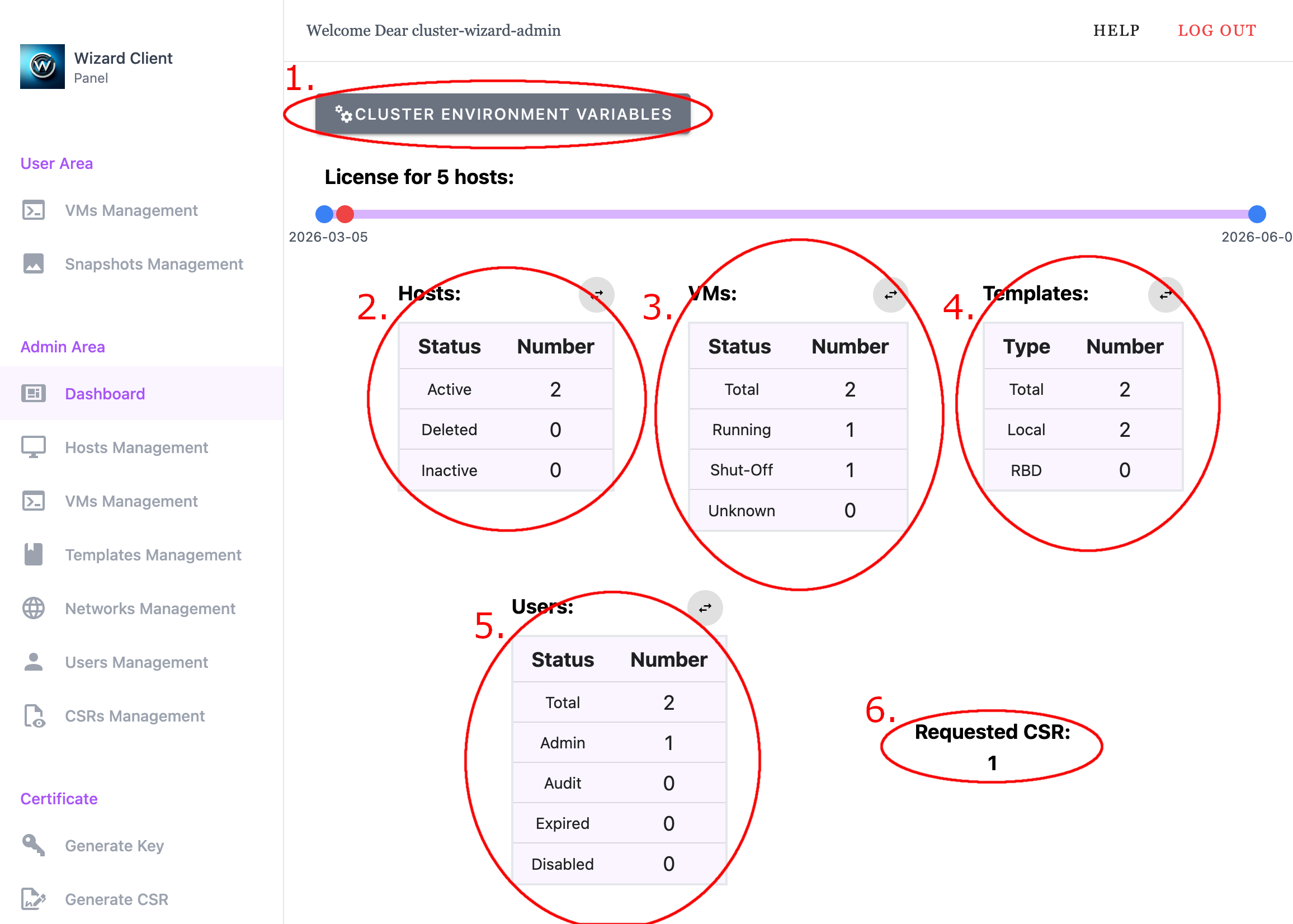
- Display Cluster Environment Variables
- Hosts Display - shows active, deleted, and inactive hosts
- VMs - Shows total VMs and counts by running, shut-off, and unknown states
- Templates - shows total number of templates (local and RBD)
- Users - shows total user count by category: admin, audit, expired, disabled
- Requested CSR - pending Certificate Signing Requests
- Display Cluster Environment Variables
- Hosts Display - shows active, deleted, and inactive hosts
- VMs - Shows total VMs and counts by running, shut-off, and unknown states
- Templates - shows total number of templates (local and RBD)
- Users - shows total user count by category: admin, audit, expired, disabled
- Requested CSR - pending Certificate Signing Requests
3.2 Hosts Management
The Hosts Management interface allows administrators to view and manage hosts that are part of the Cluster Wizard environment. From this interface, administrators can access host consoles, manage host assignments, review host information, and perform administrative tasks such as updating host data or renewing licenses.
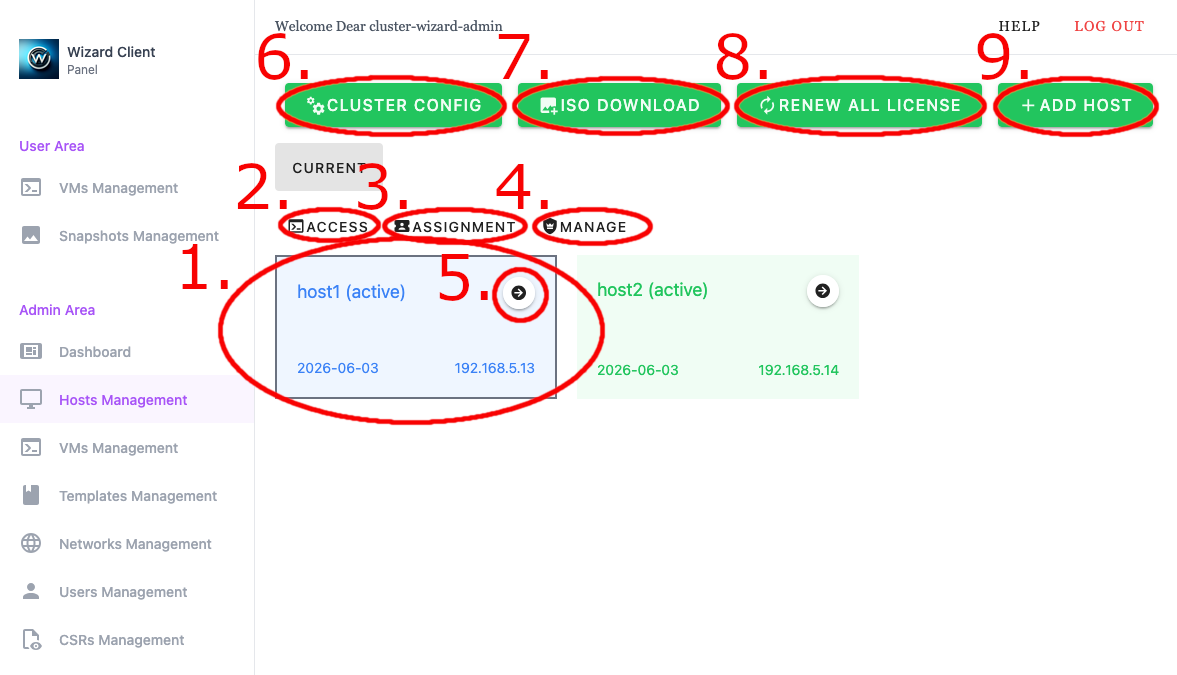
- Selected Host - Indicates the host currently selected for management actions
- Access Menu
- Assignment Menu
- Manage Menu
- Host Info
- Cluster Config - Change Cluster wide configuration
- ISO Download
- Renew All License
- Add Host - Opens the interface for registering a new host
- Selected Host - Indicates the host currently selected for management actions
- Access Menu
- Assignment Menu
- Manage Menu
- Host Info
- Cluster Config - Change Cluster wide configuration
- ISO Download
- Renew All License
- Add Host - Opens the interface for registering a new host
3.2.1 Access Menu
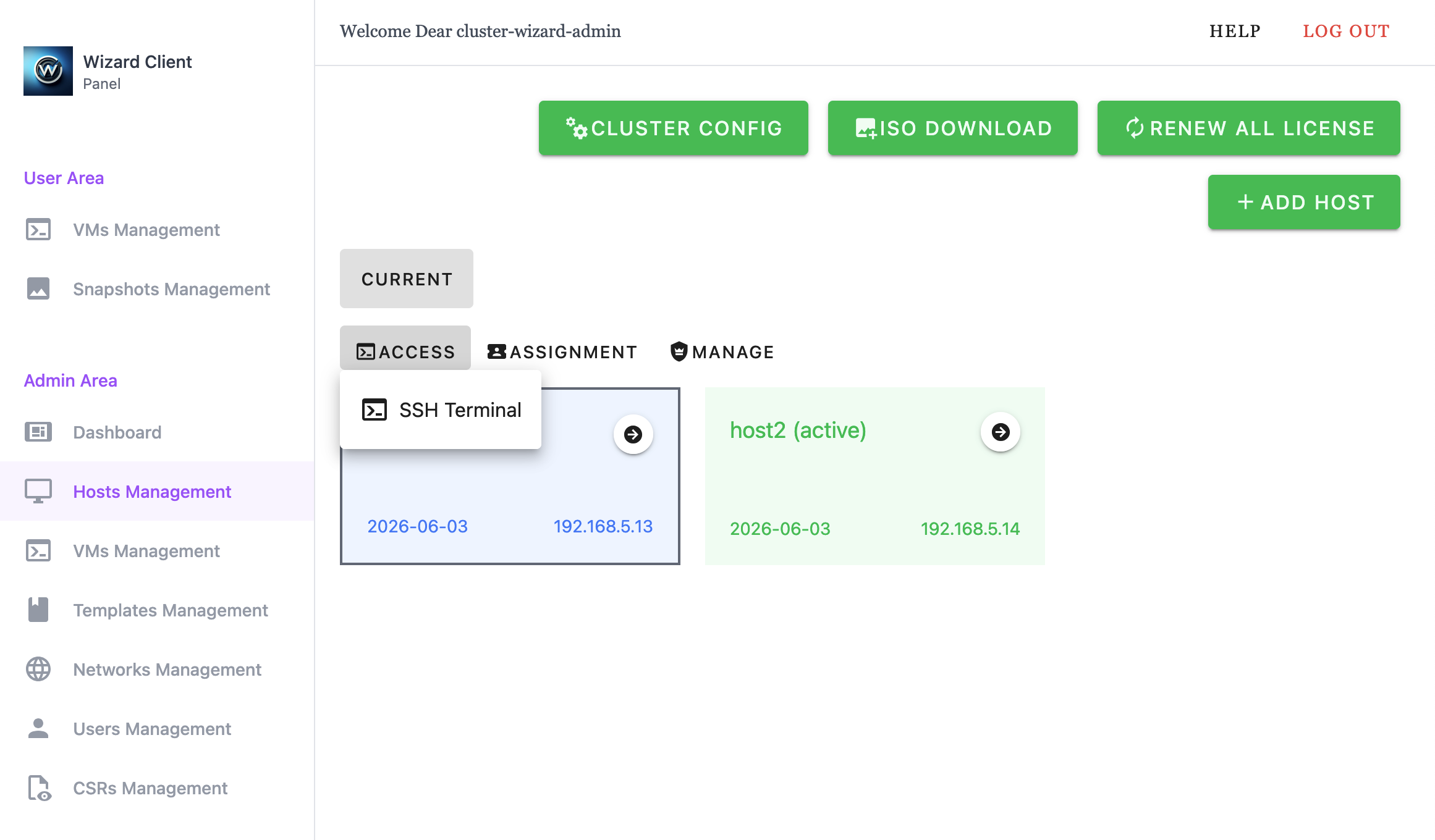
- SSH Terminal - provide WebUI based SSH access to selected host
3.2.2 Assignment Menu
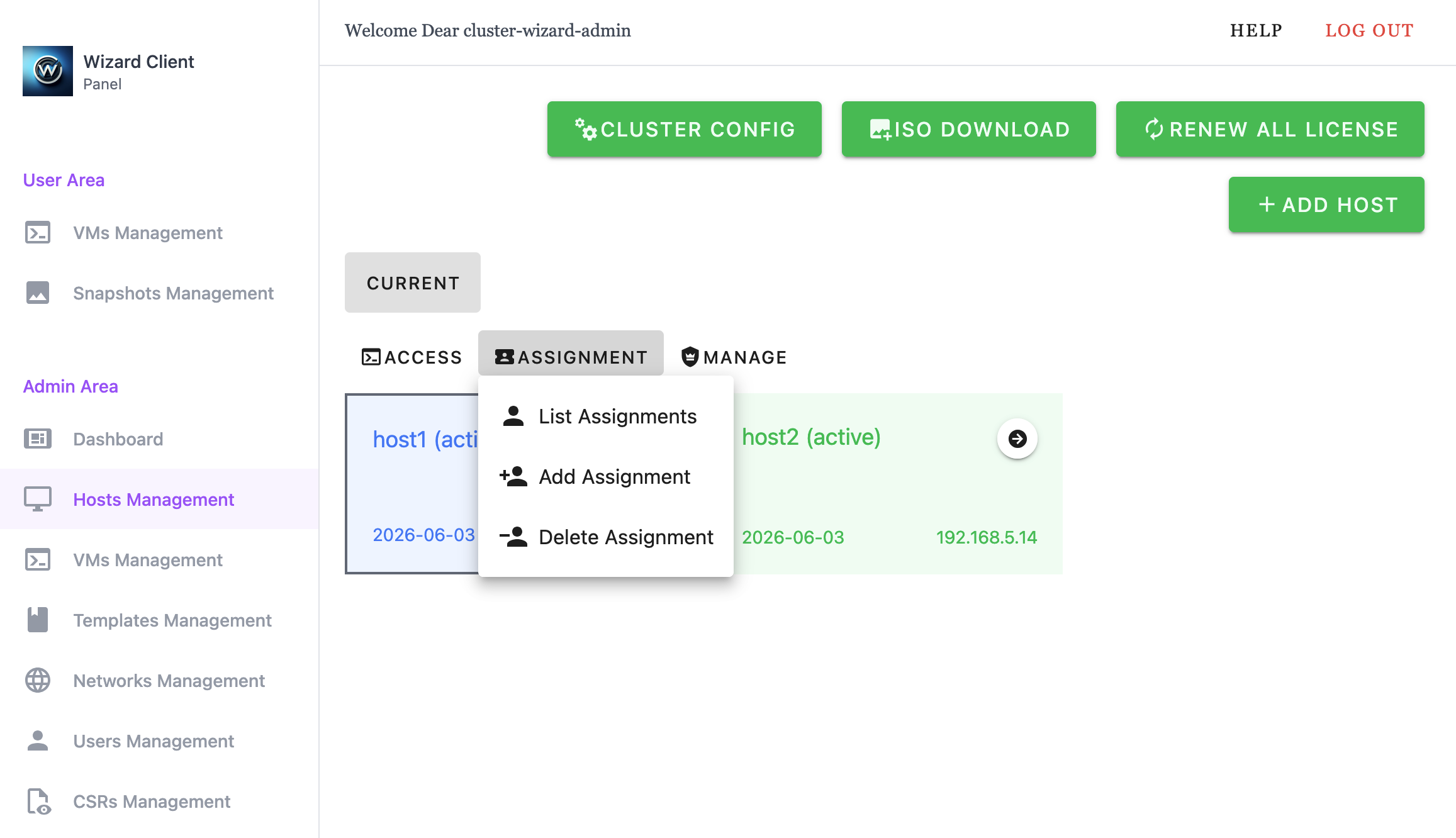
- List Assignment - List assigned users of selected host
- Add Assignment - Assign a user to selected host
- Delete Assignment - Delete user assignment to selected host
3.2.3 Manage Menu
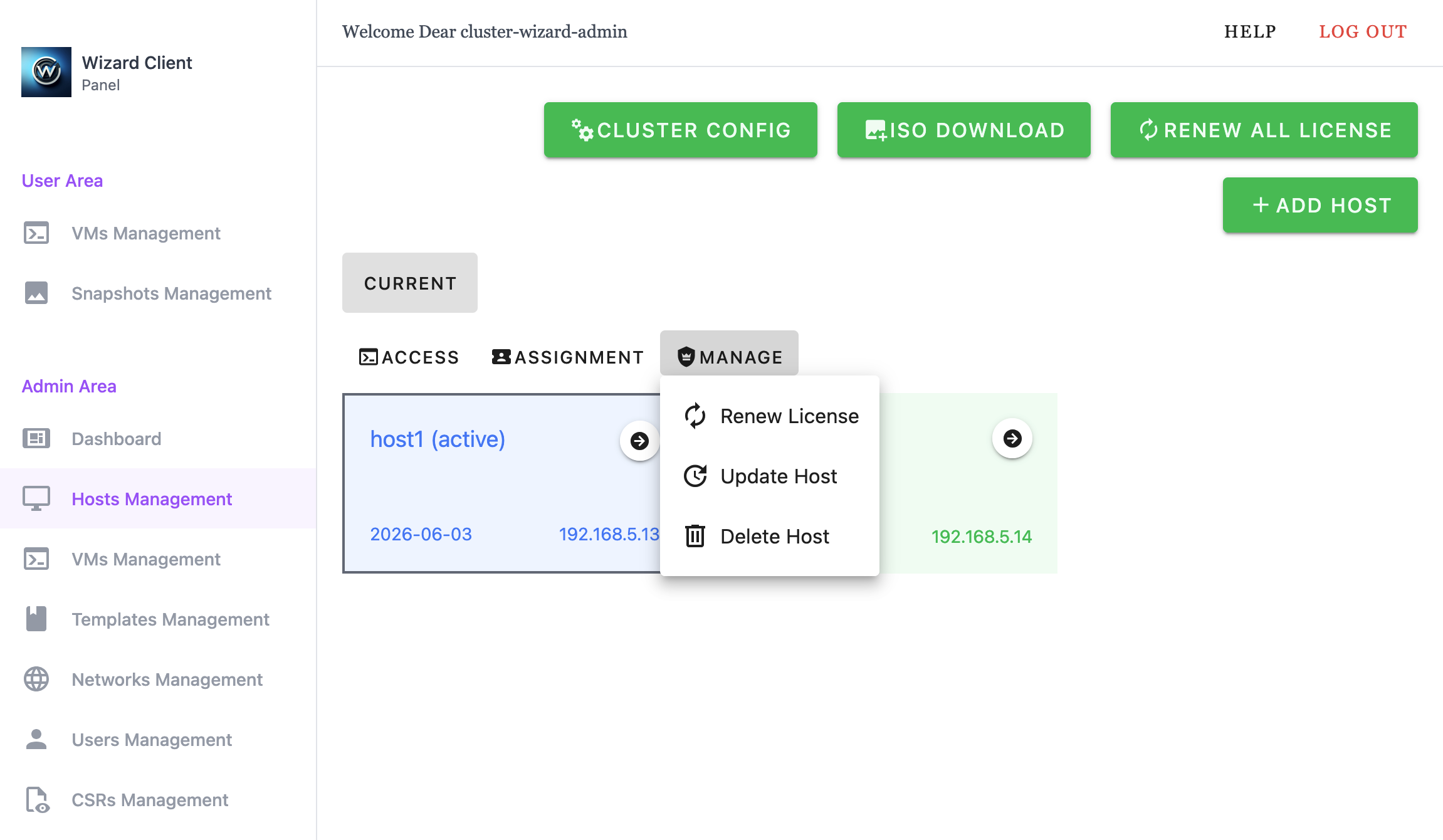
- Renew License - Request a new Node Wizard license for selected host
- Update Host - Request an update to cached host information
- Delete Host - Delete host from Cluster Wizard
3.2.4 Host Info
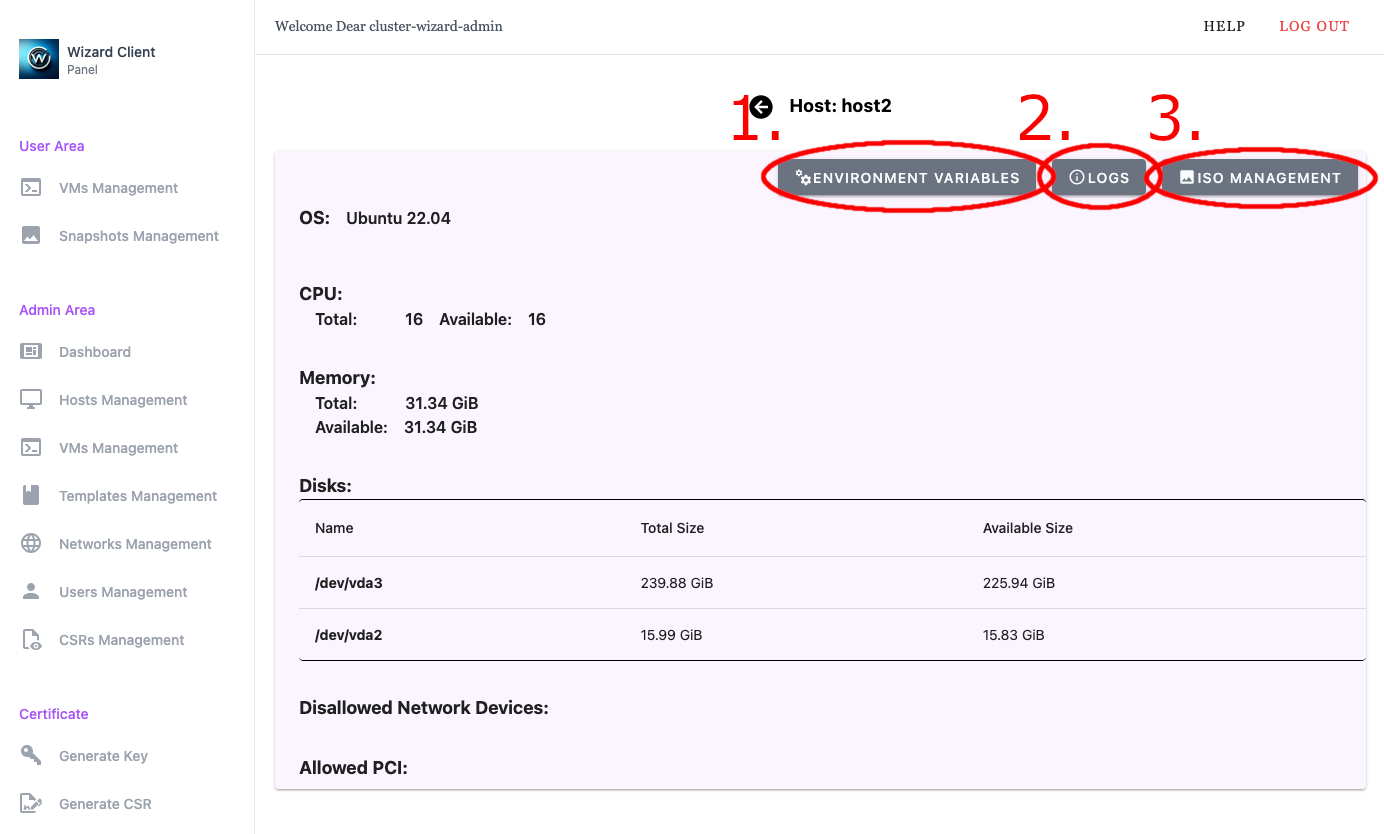
- Environment Variables
- Host Logs
- ISO Management
- Environment Variables
- Host Logs
- ISO Management
3.2.5 ISO Download
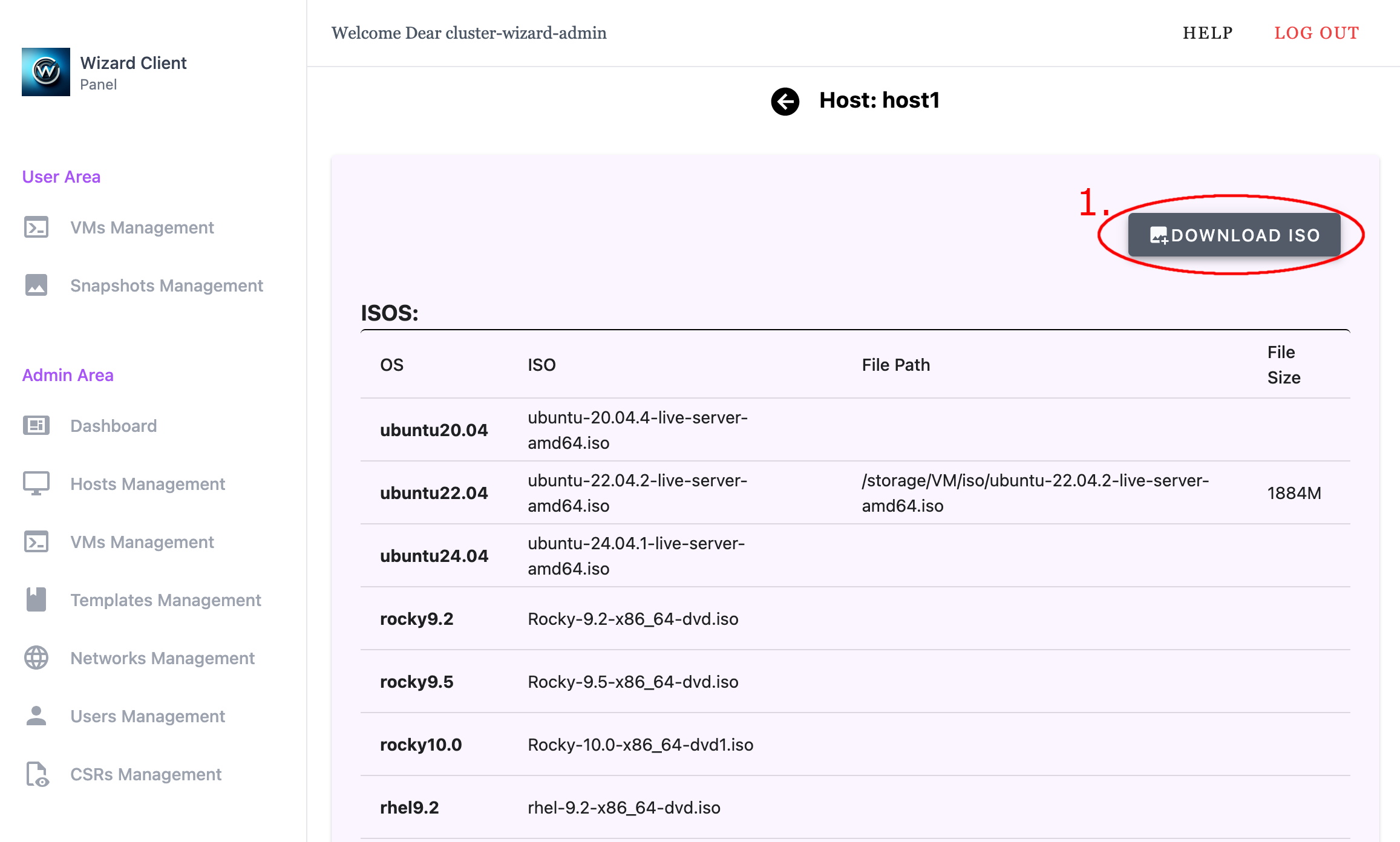
- Download ISO for current host
- Download ISO for current host
3.3 VMs Management
The VMs Management interface provides administrators with tools to view and manage virtual machines within the Cluster Wizard environment. From this interface, administrators can create VMs, manage VM configuration, and perform operational actions such as power, networking, snapshot, storage, and user assignment management.
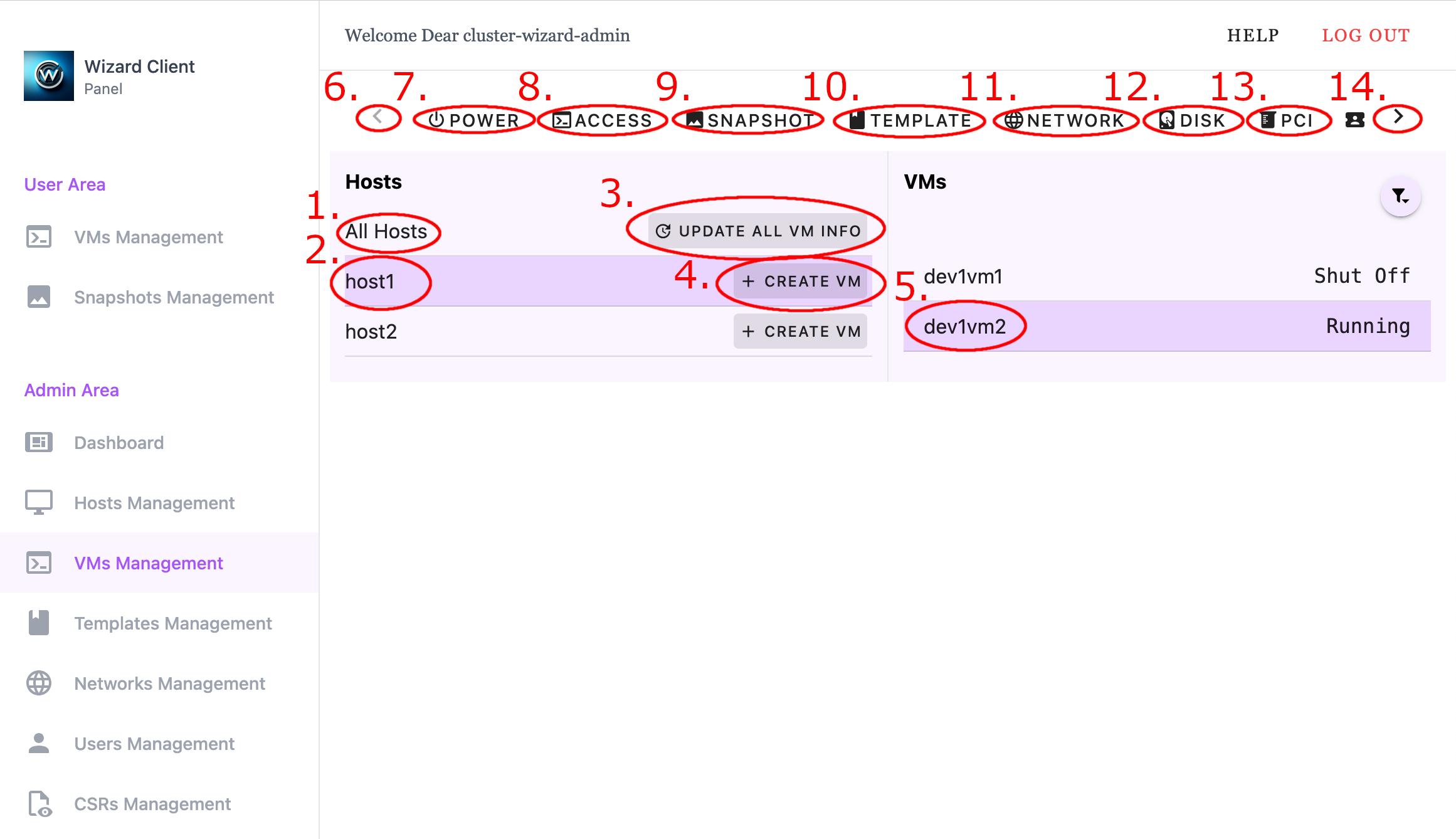
- All Hosts - View VMs across all hosts
- Selected Host - View VMs on the selected host
- Update All VM Info
- Create VM
- Selected VM Name
- Scroll Left to show more menu options
- Power Menu
- Access Menu
- Snapshot Menu
- Template Menu
- Network Menu
- Disk Menu
- PCI Menu
- Scroll Right to show more menu options
- All Hosts - View VMs across all hosts
- Selected Host - View VMs on the selected host
- Update All VM Info
- Create VM
- Selected VM Name
- Scroll Left to show more menu options
- Power Menu
- Access Menu
- Snapshot Menu
- Template Menu
- Network Menu
- Disk Menu
- PCI Menu
- Scroll Right to show more menu options
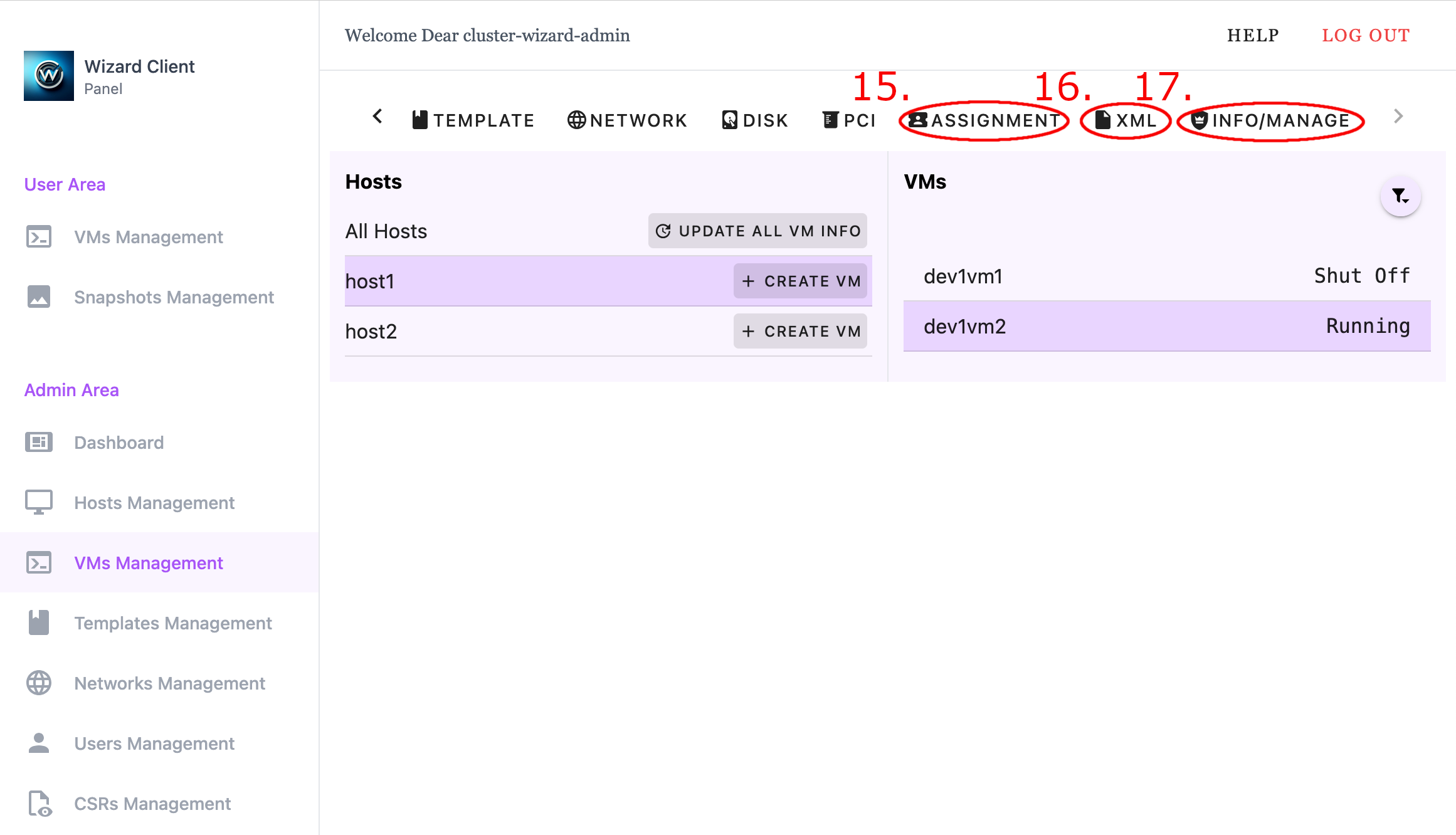
3.3.1 Power
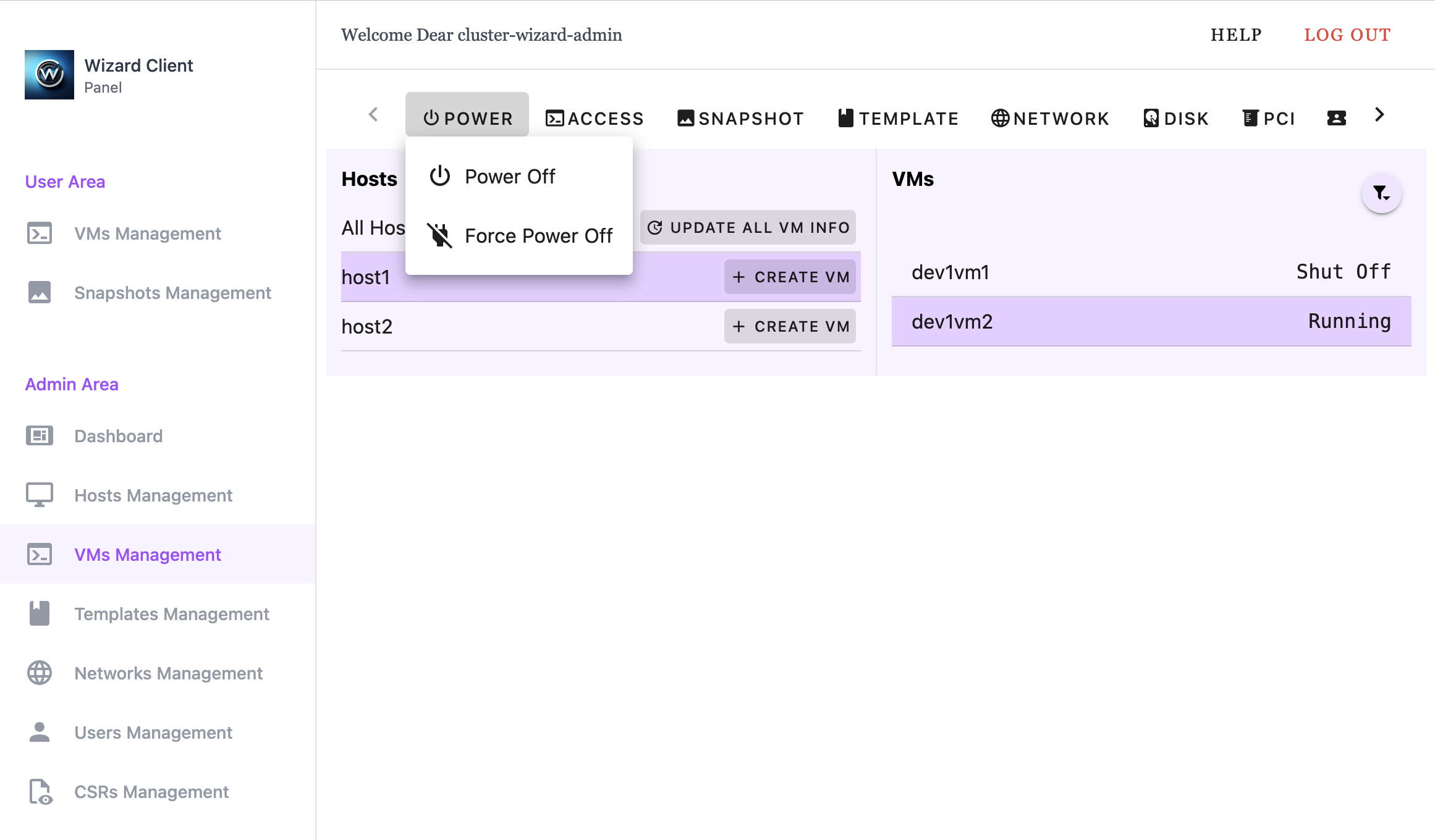
- Power - gracefully powers off the selected VM
- Force Power Off - immediately power off the selected VM without a graceful shutdown
3.3.2 Access
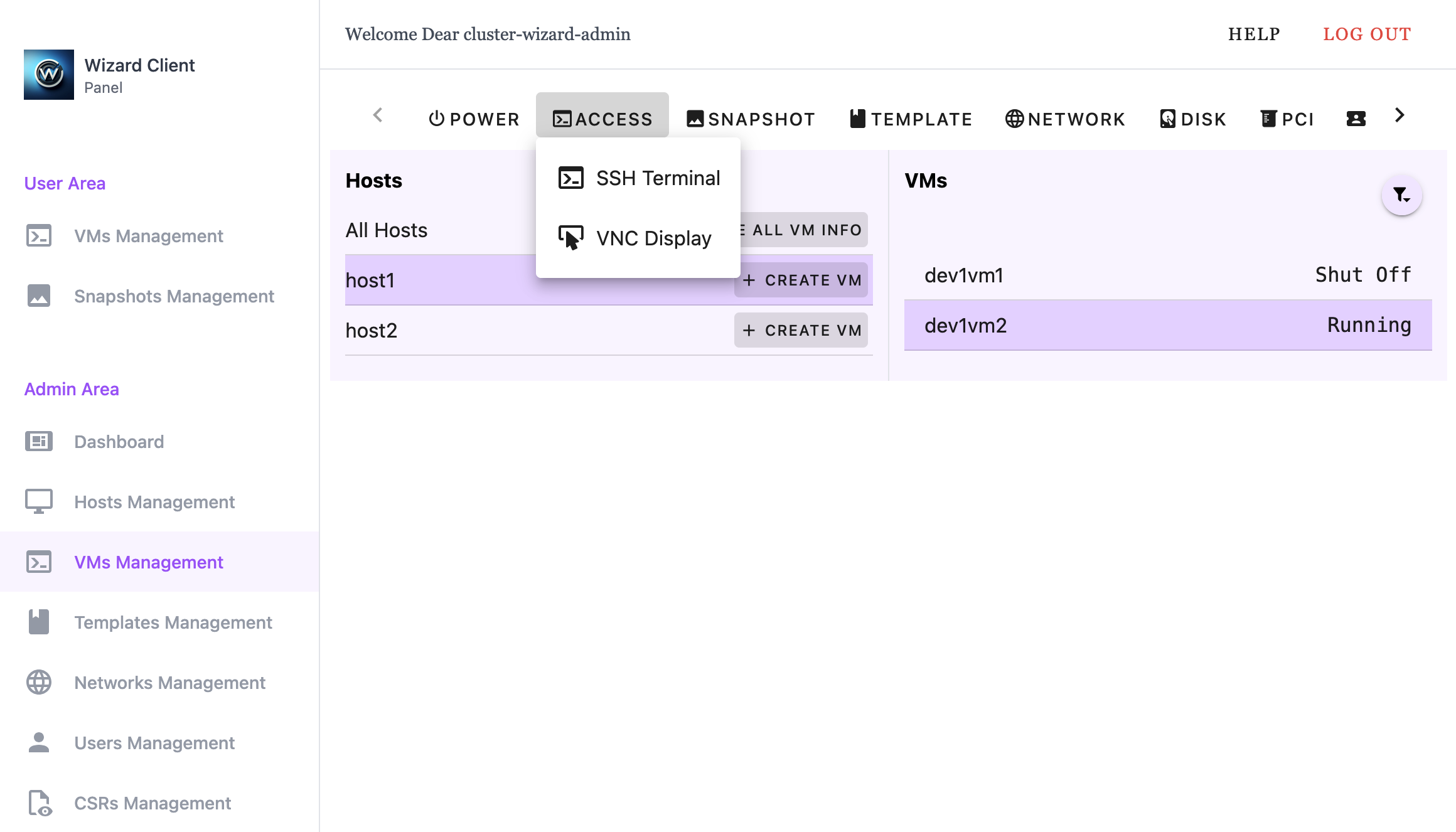
- SSH Terminal - provide WebUI based SSH access to selected VM
- VNC Display - provide WebUI based VNC access to selected VM
3.3.3 Snapshot
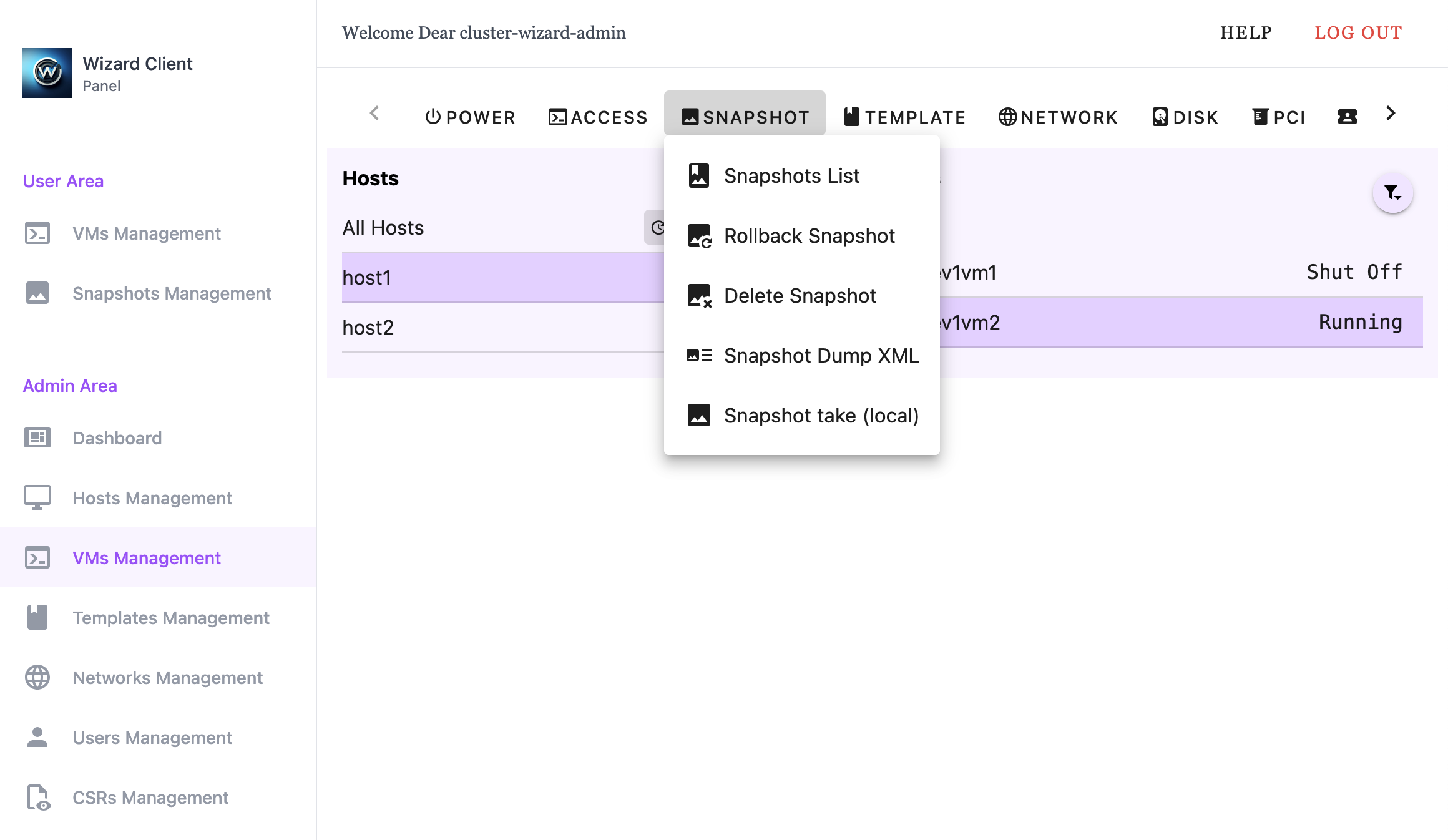
- Snapshot List - List all Snapshots
- Rollback Snapshot - Restore a VM to a previous state
- Delete Snapshot - Delete a Snapshot
- Snapshot Dump XML - Download the snapshot domain XML
- Snapshot take (local/RBD) - creates a local or Ceph RBD snapshot of the selected VM
3.3.4 Template
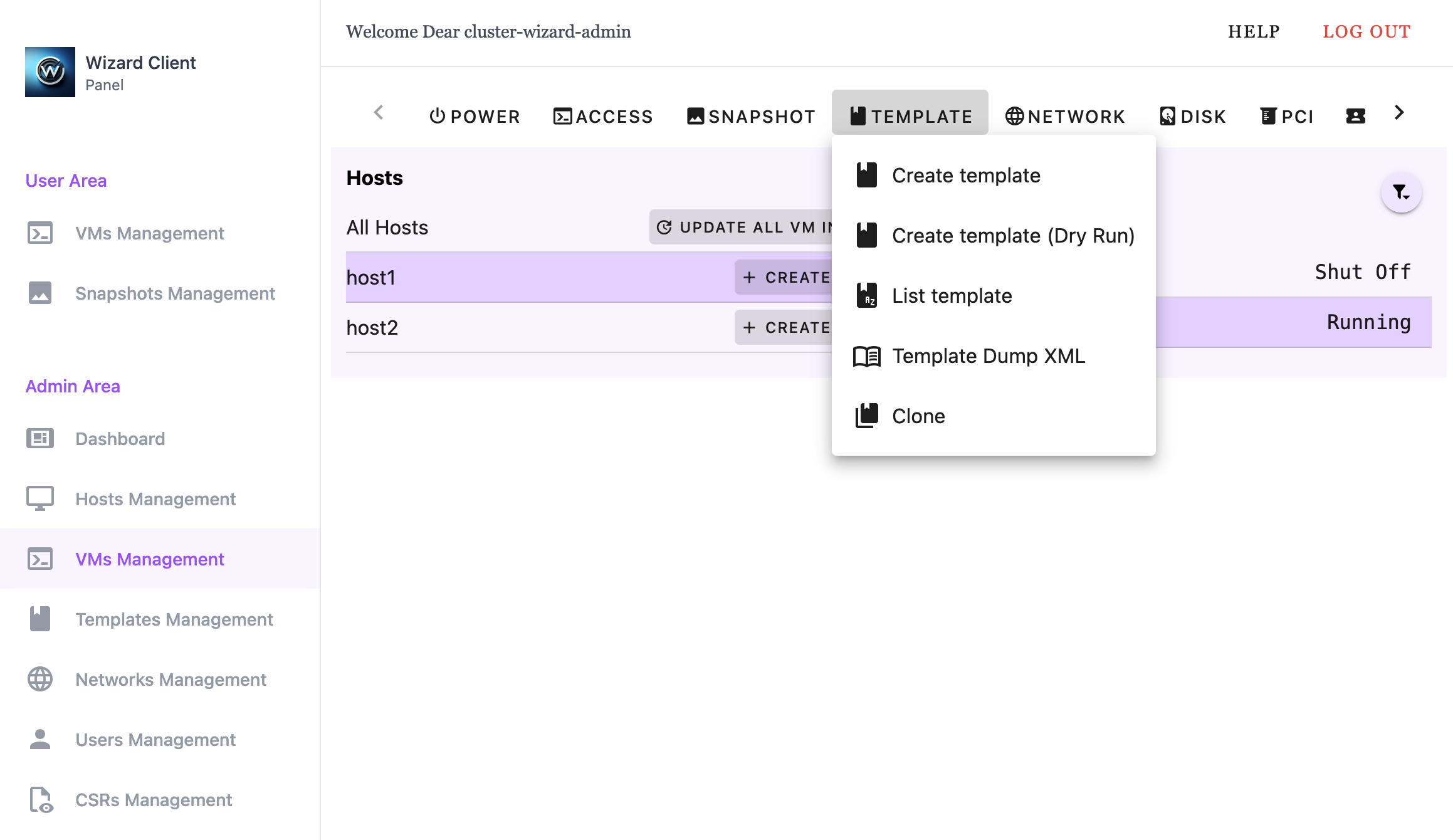
- Create Template
- Create Template (Dry Run)
- List Template
- Template Dump XML
- Clone
3.3.5 Network
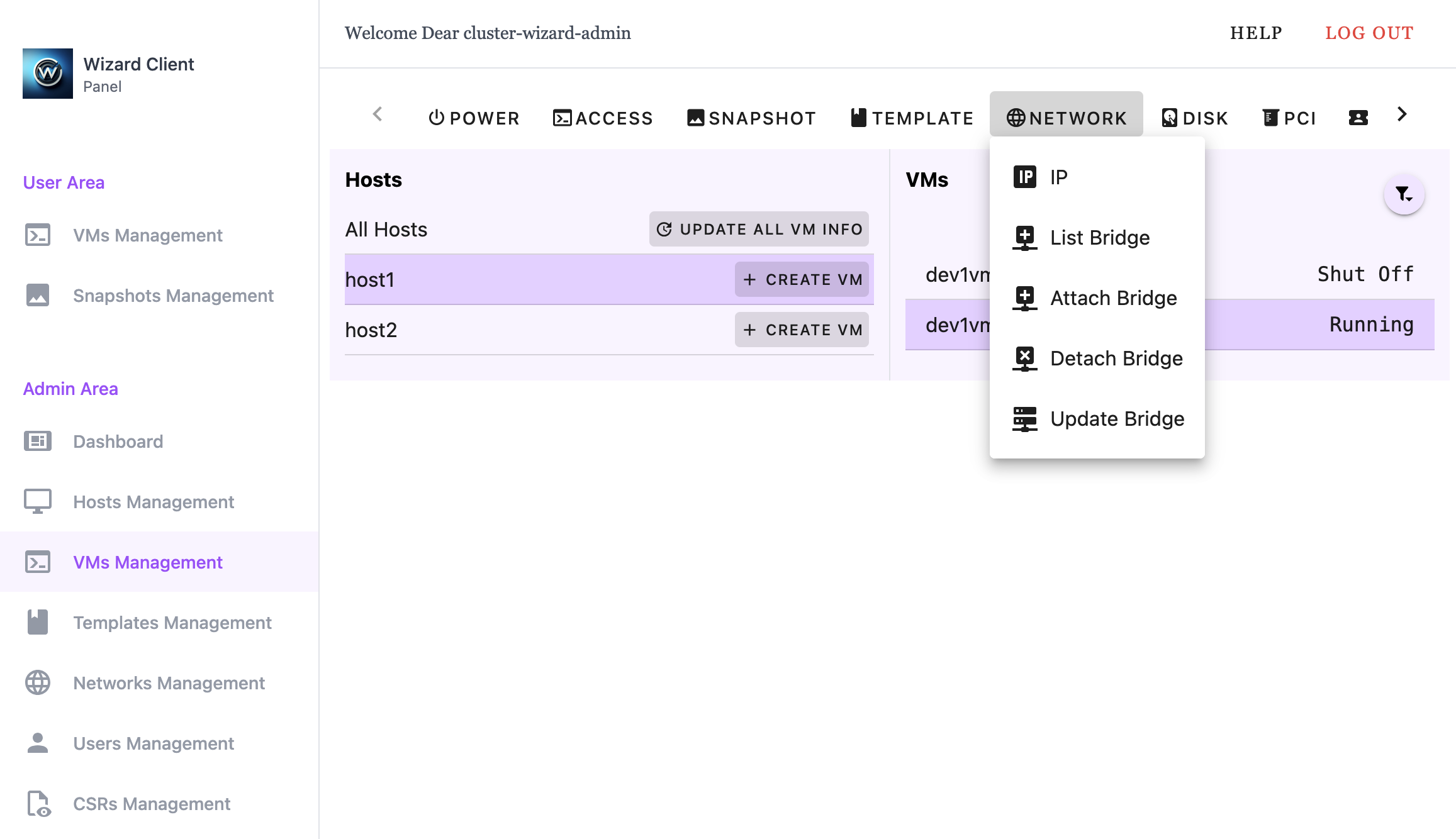
- IP - Display configured IP information for the VM
- List Bridge - List bridge network devices attached to the VM
- Attach Bridge - Attach a bridge network device to the VM
- Detach Bridge - Detach a bridge network device from the VM
- Update Bridge - Update bridge configuration
3.3.6 Disk
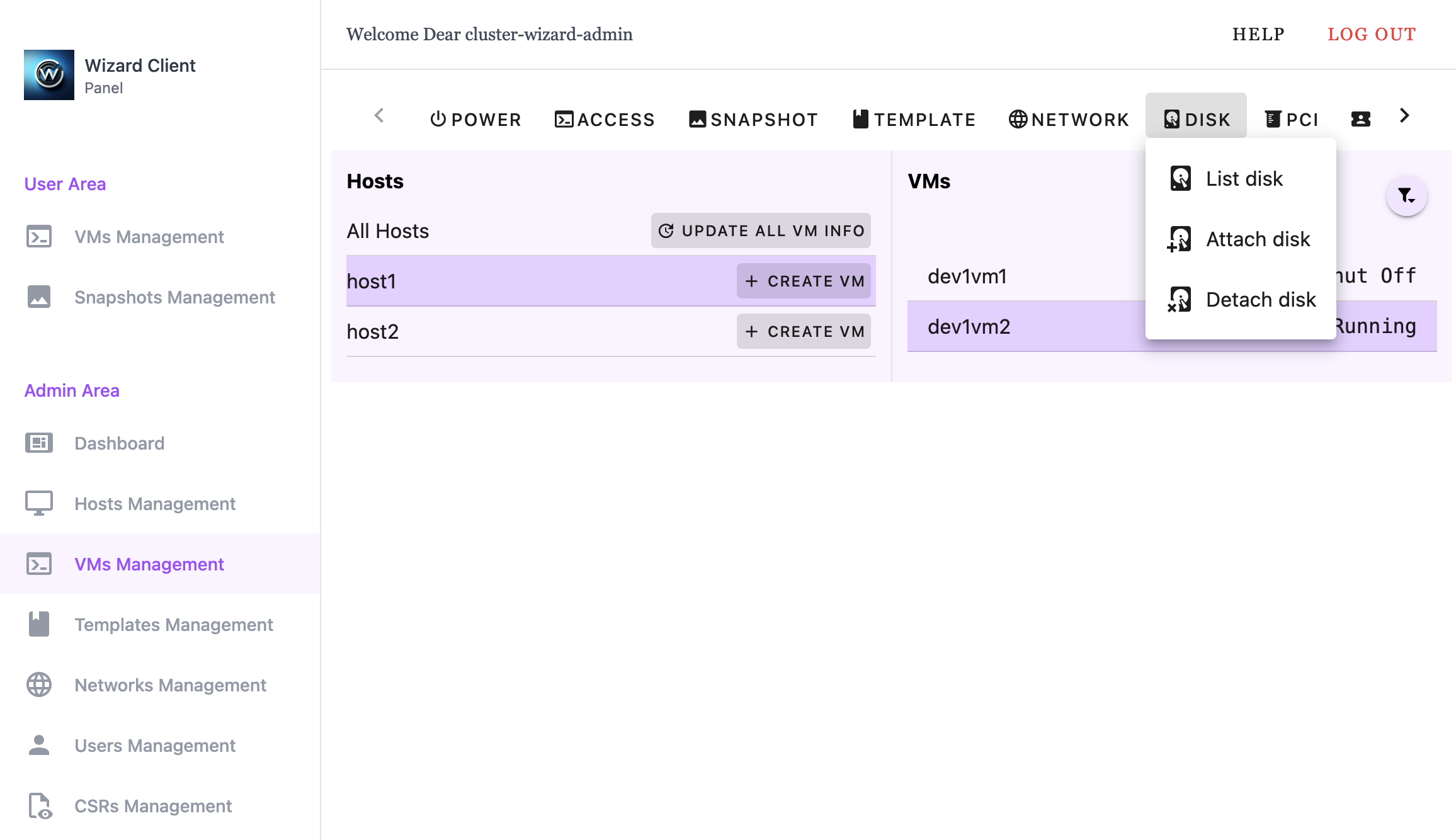
- List Disk - List all disks attached to the VM
- Attach Disk - Attach a disk to the VM
- Detach Disk - Detach a disk from the VM
3.3.7 PCI
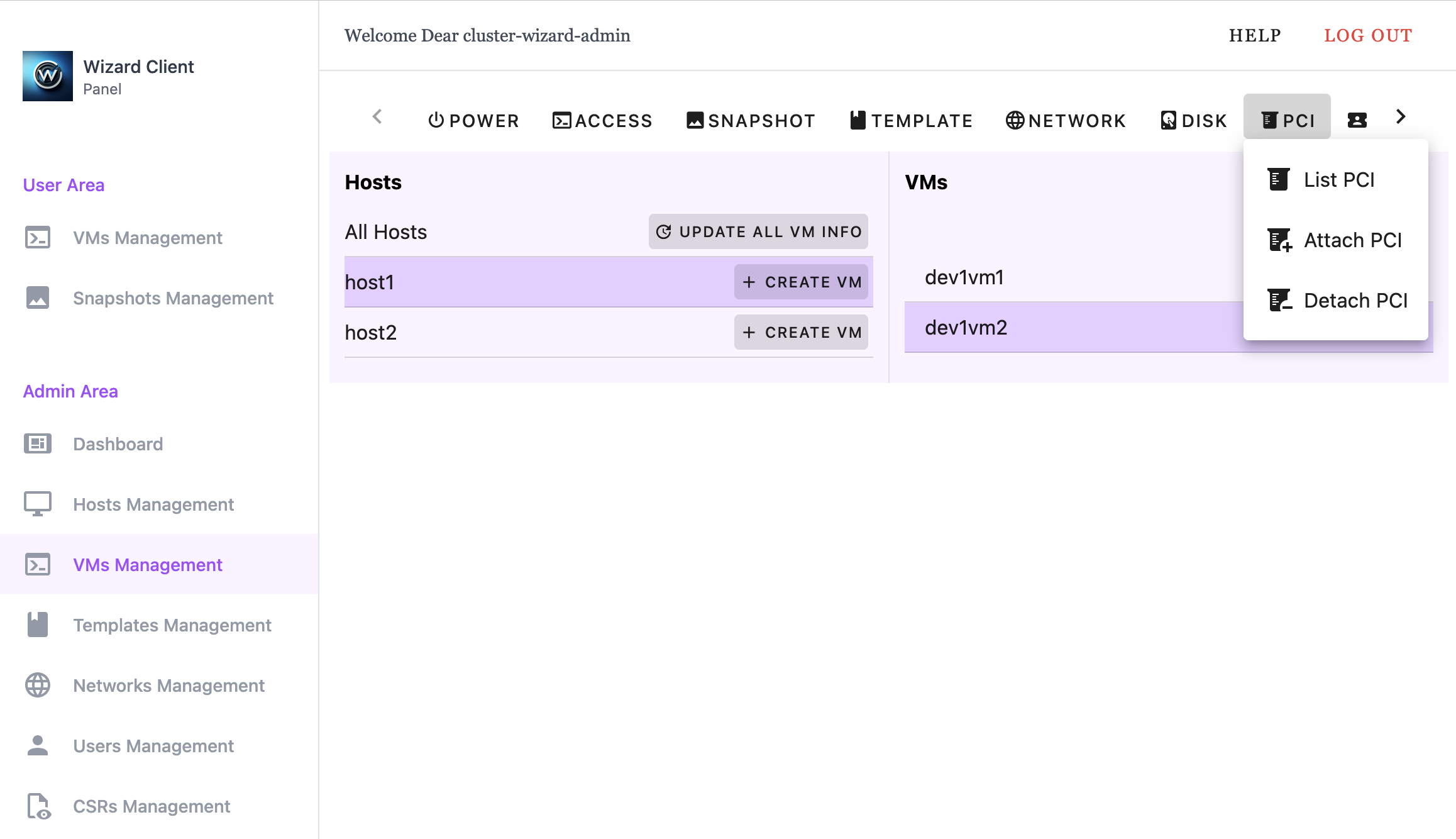
- List PCI - List all Host PCI devices attached to the VM
- Attach PCI - Attach a Host PCI device to the VM
- Detach PCI - Detach Host PCI device from the VM
3.3.8 Assignment
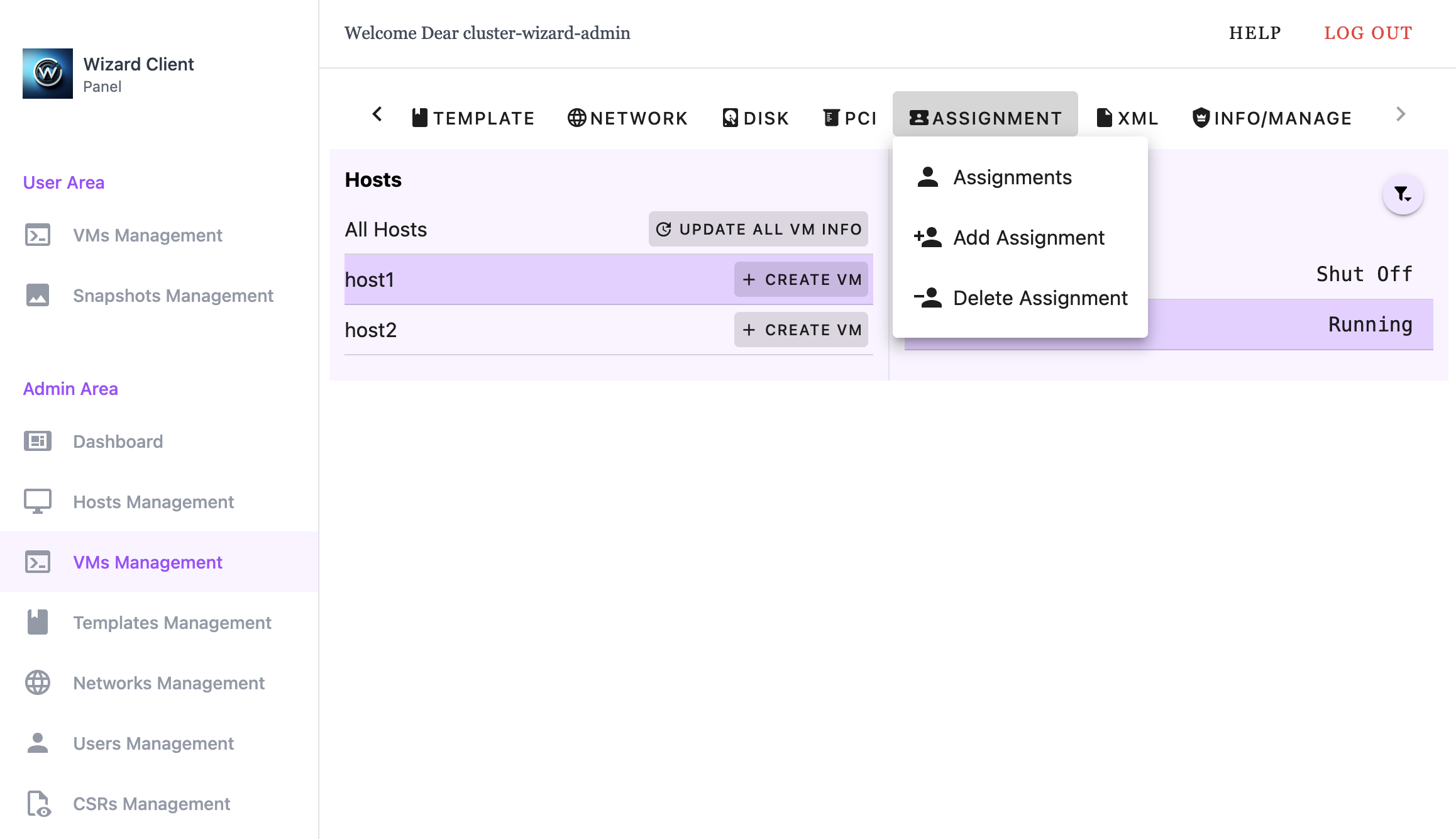
- Assignments - List all users assigned to the VM
- Add Assignments - Assign user to the VM, granting control and access
- Delete Assignments - Remove user assignment
3.3.9 XML
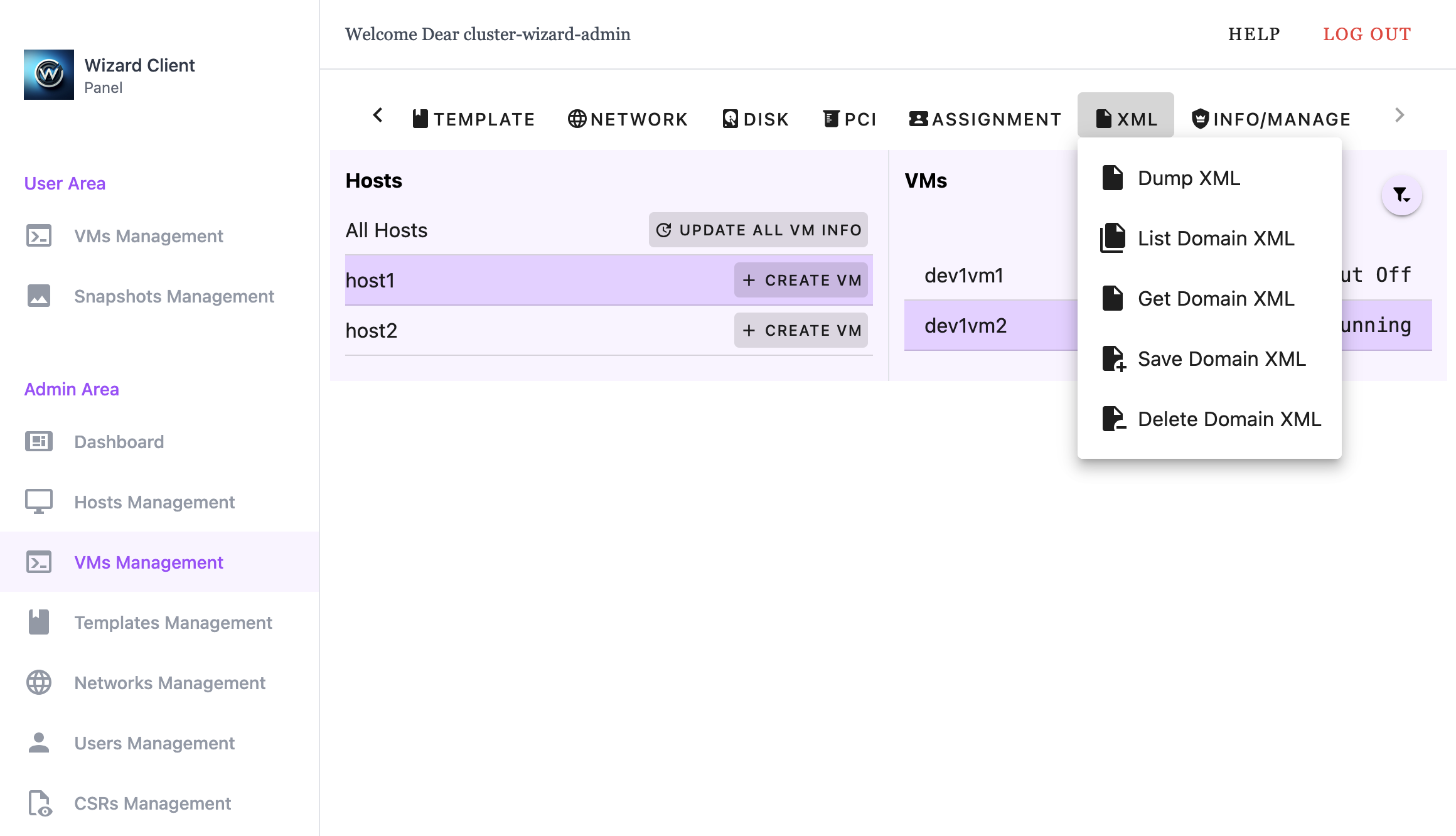
- Dump XML - Download VM's current domain XML
- List Domain XML - List all saved domain XML files
- Get Domain XML - Download a saved domain XML file
- Save Domain XML - Save current domain XML
- Delete Domain XML - Delete a saved domain XML file
3.3.10 Info/Manage
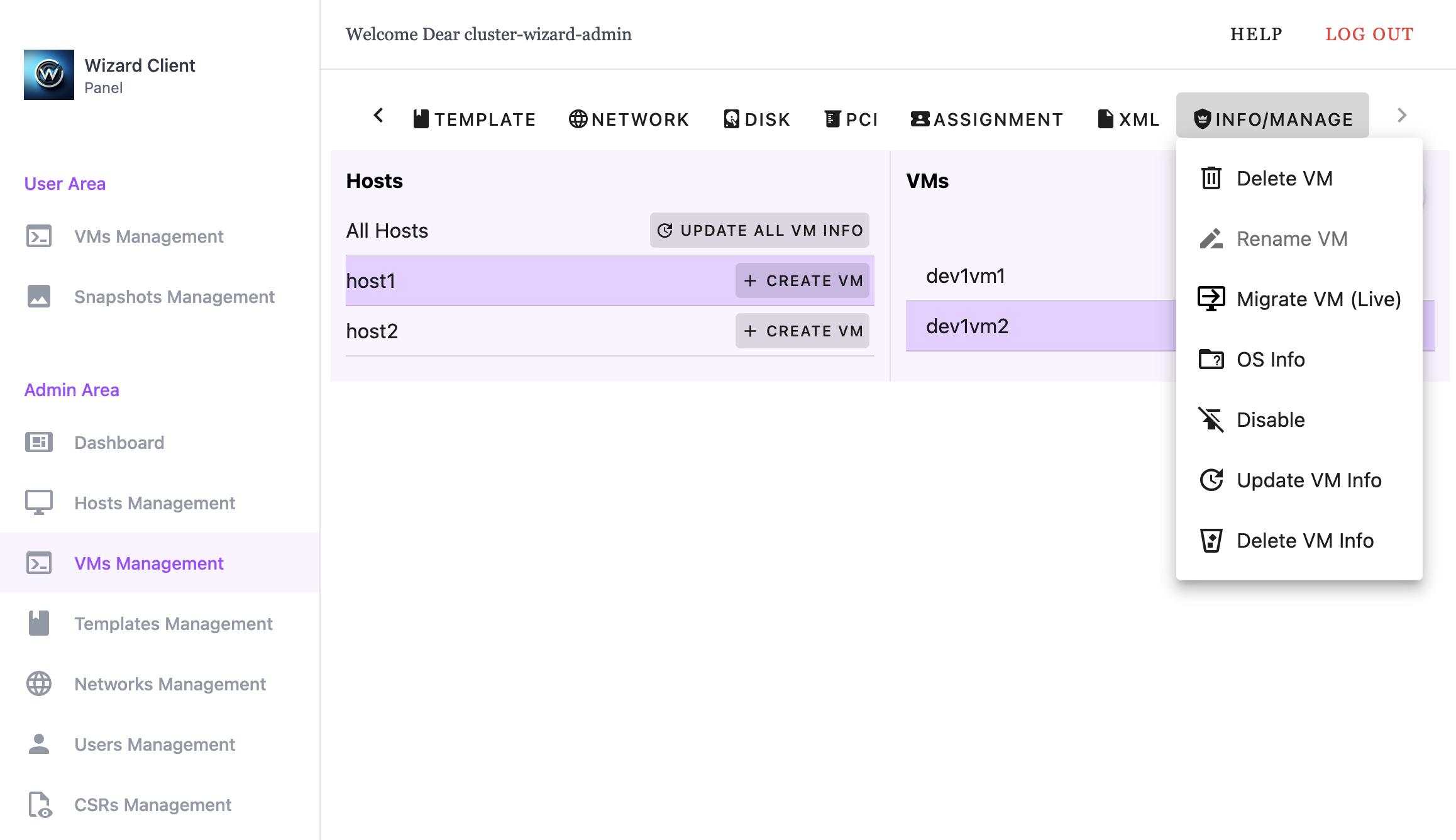
- Delete VM - Delete the VM
- Rename VM - Rename the VM
- Migrate VM (Live/Offline) - Move the VM to another compatible host
- OS Info - Display known VM OS information
- Disable - Disable VM, preventing usage
- Update VM Info - Update Cluster Wizard's cached VM information
- Delete VM Info - Delete Cluster Wizard's cached VM information
3.4 Templates Management
The Templates Management interface allows administrators to view and manage virtual machine templates stored within the Cluster Wizard environment. Administrators can browse templates by storage class and deploy new VMs from existing templates.
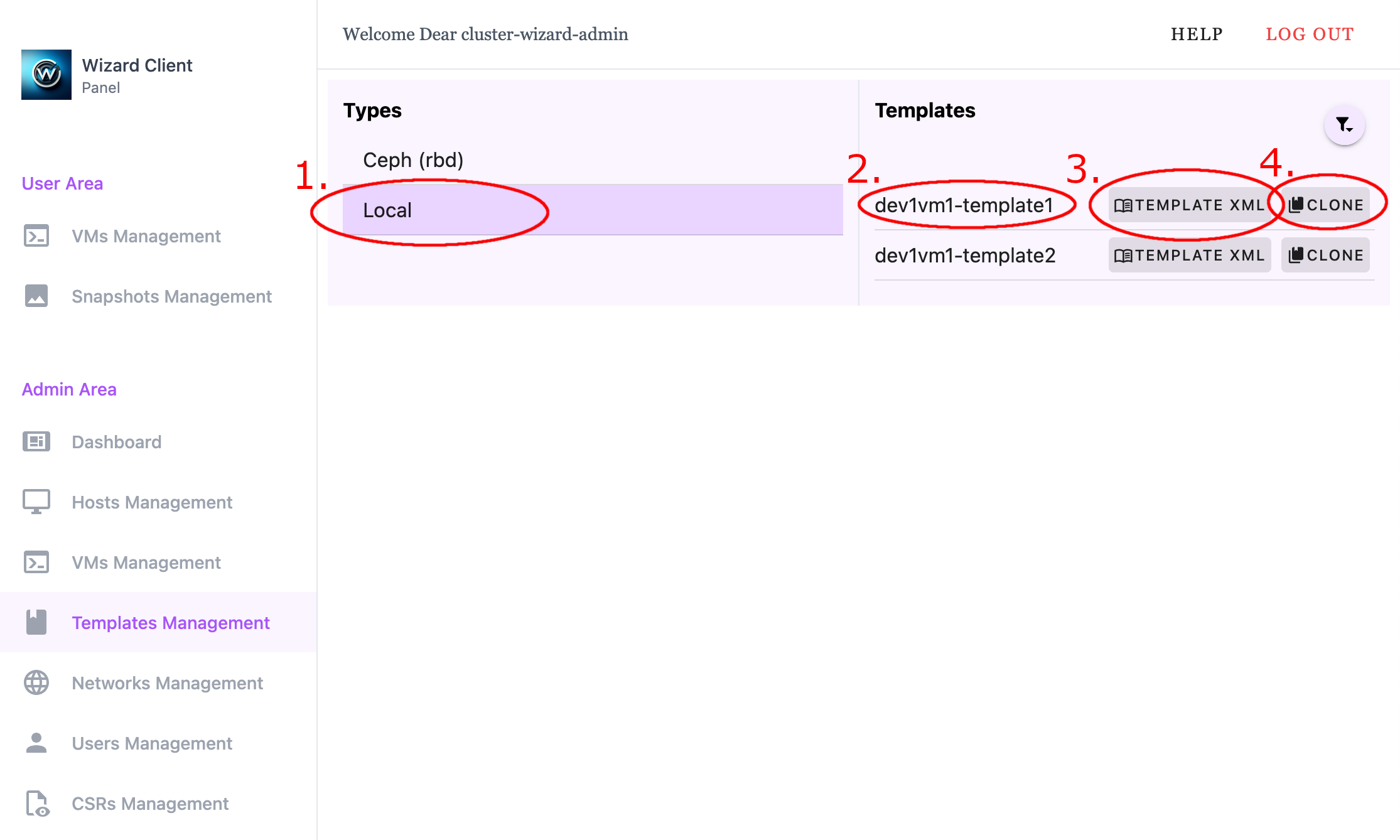
- Storage Class for template selection
- Template Name
- Domain XML file for template
- Creates a new VM by cloning the selected template
- Storage Class for template selection
- Template Name
- Domain XML file for template
- Creates a new VM by cloning the selected template
3.5 Networks Management
The Networks Management interface allows administrators to view and manage network configurations on cluster hosts. From this interface, administrators can inspect available network devices, review network configuration details, and create new virtual networks. These networks can then be used by virtual machines to provide connectivity within the cluster environment.
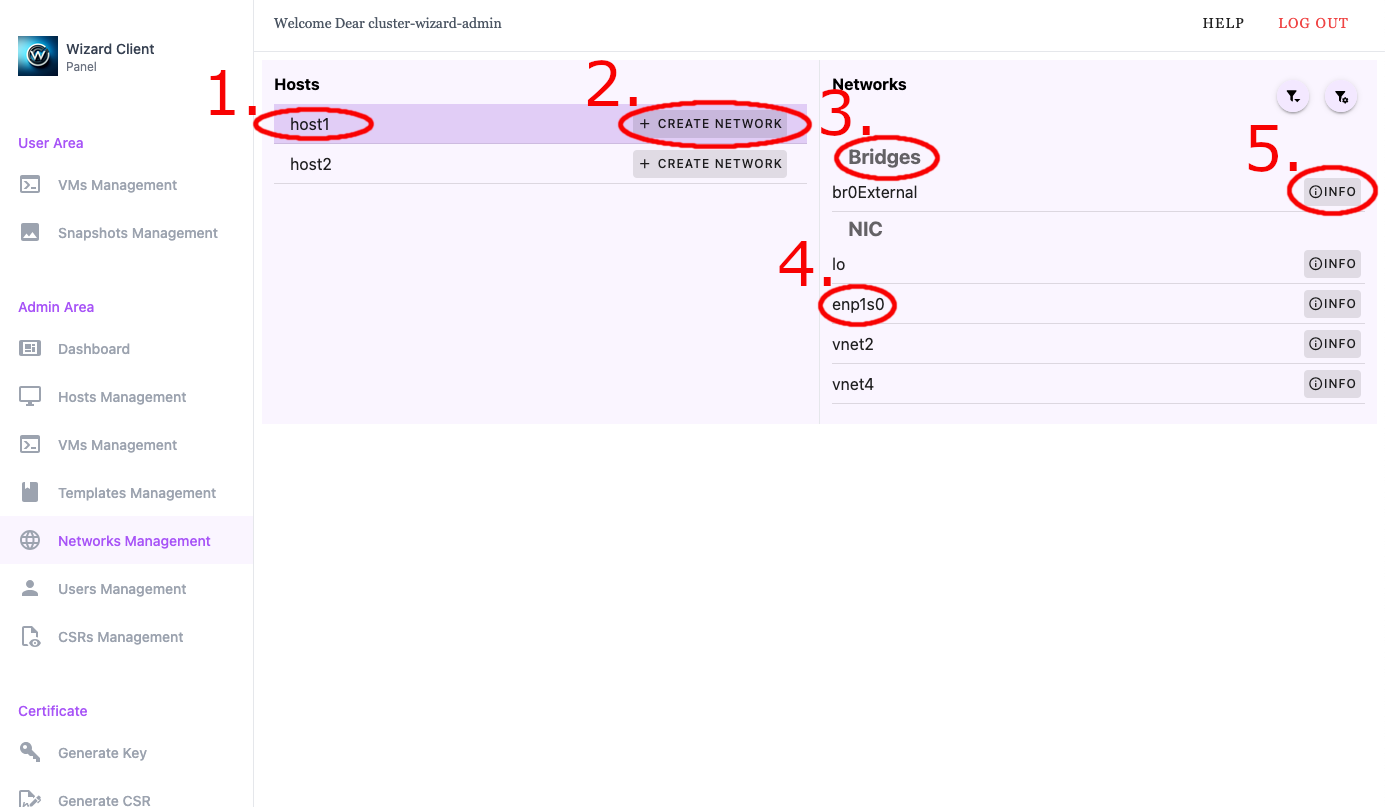
- Selected Host - Select a host to view the network devices
- Create Network - Create new virtual network device (VXLAN, VLAN, and bridge interfaces)
- Network Device Type - Category of the network device in device list
- Network Device Name - Name of the network device in device list
- Network Device Info - Display additional details about the selected network device
- Selected Host - Select a host to view the network devices
- Create Network - Create new virtual network device (VXLAN, VLAN, and bridge interfaces)
- Network Device Type - Category of the network device in device list
- Network Device Name - Name of the network device in device list
- Network Device Info - Display additional details about the selected network device
3.6 Users Management
The Users Management interface allows administrators to view and manage user accounts within the Cluster Wizard environment. From this interface, administrators can assign virtual machines to users, modify account settings, and create new user accounts.
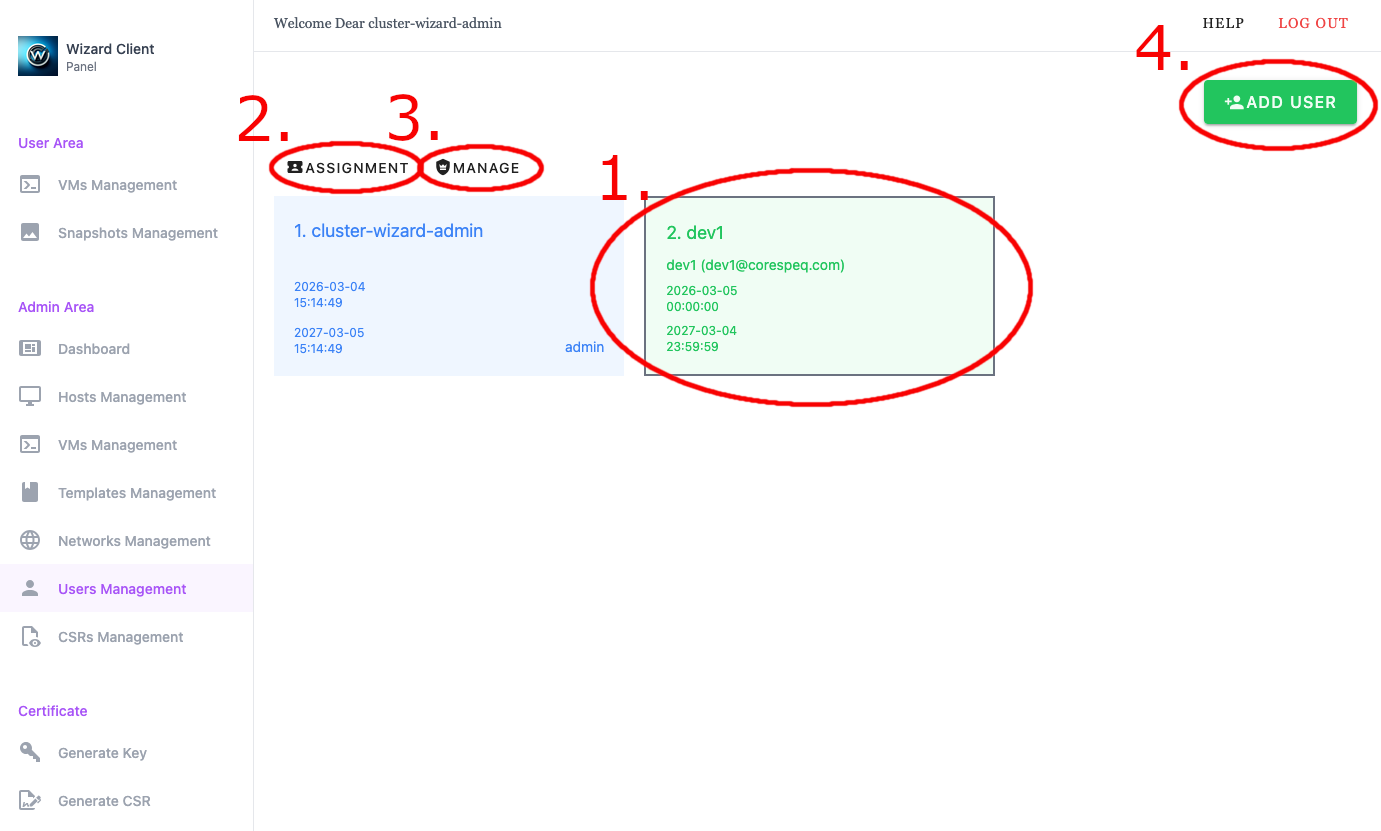
- Selected User - Indicates the user currently selected for assignment and management actions
- User Assignment Menu
- User Manage Menu
- Add User - Opens the interface for creating a new user account
- Selected User - Indicates the user currently selected for assignment and management actions
- User Assignment Menu
- User Manage Menu
- Add User - Opens the interface for creating a new user account
3.6.1 Assignment Menu
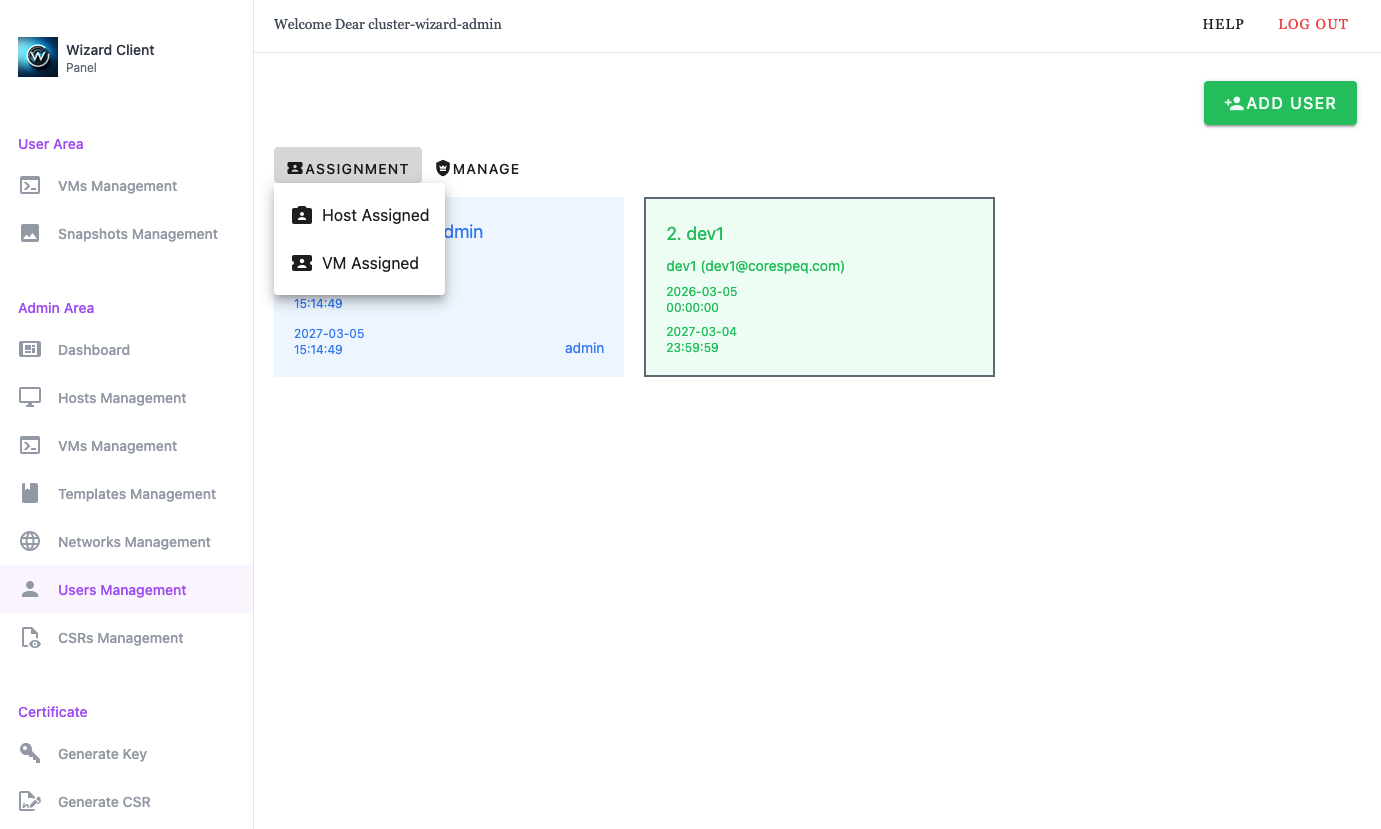
Provides options for assigning VMs to the selected user.
3.6.2 Manage Menu
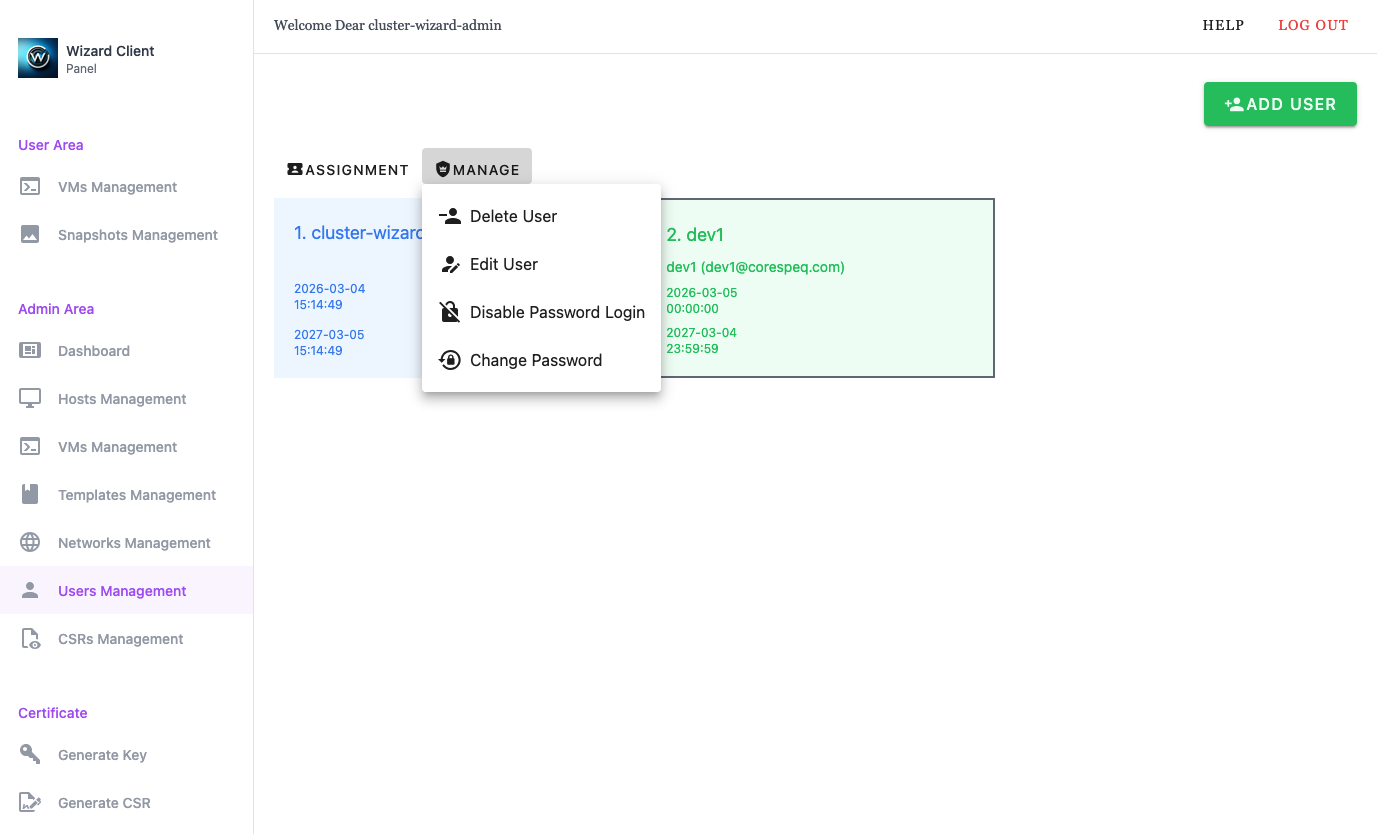
Provides administrative actions for managing the selected user account. These actions may include modifying account settings, enabling or disabling the user, or updating user details.
3.7 CSRs Management
The CSRs Management interface allows administrators to review and manage Certificate Signing Requests (CSRs) submitted by users. From this interface, administrators can inspect request details, approve or reject CSRs, and monitor the status of all certificate requests. Approved certificates enable users to authenticate with the Cluster Wizard using certificate-based authentication.
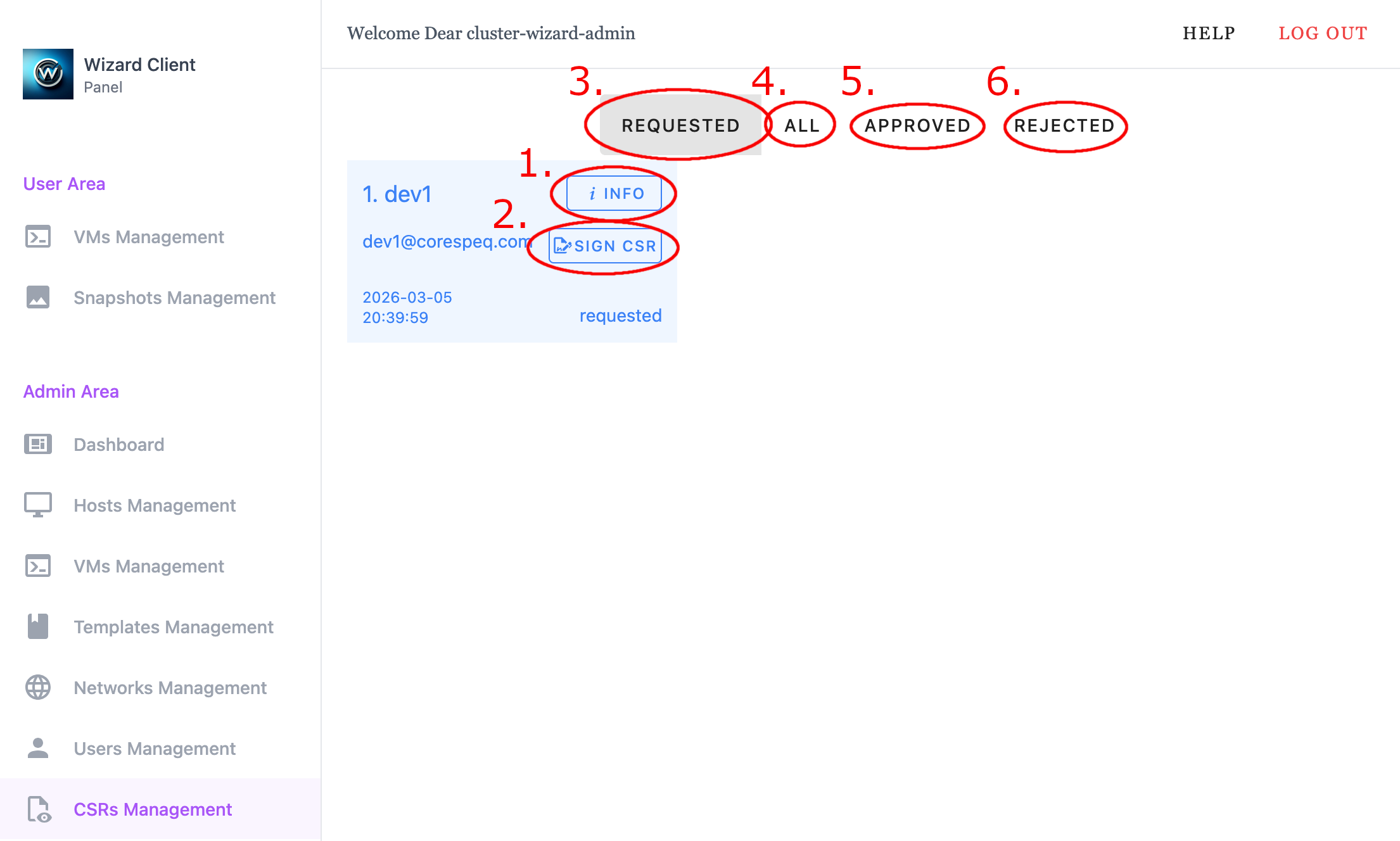
- Info - detailed information about the CSR
- Sign CSR - Approves and signs the CSR
- Requested - Displays pending CSRs
- All - Displays all CSRs
- Approved - Displays approved CSRs
- Rejected - Displays rejected CSRs
- Info - detailed information about the CSR
- Sign CSR - Approves and signs the CSR
- Requested - Displays pending CSRs
- All - Displays all CSRs
- Approved - Displays approved CSRs
- Rejected - Displays rejected CSRs